
Overview
Autotask companies and accounts must be kept synchronized to ensure the integration exports the correct subscriptions and billing data to the corresponding entities in Autotask.
To import existing companies from Datto Autotask as organizations in Cloudmore, use the bulk import for multiple entries or add them individually. First, customize the import process by adding the Autotask Company ID as a mandatory field.
Prepare export from Autotask
-
Log in to the Autotask account.
-
In the CRM > Accounts or Companies list screen.
-
Click Search to display all companies or accounts.
-
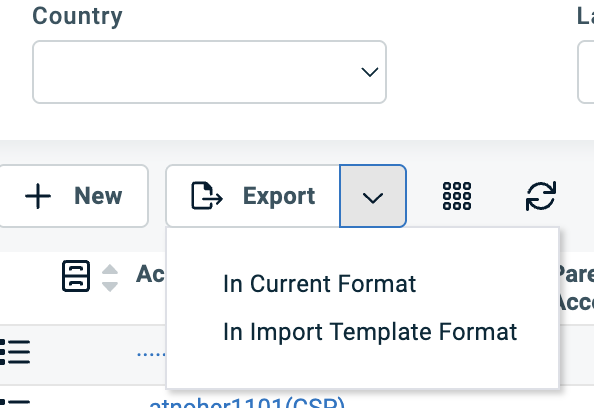
Click Export > In Import Template Format and download the file.
-
The Account ID [updates only] or Company ID [updates only] column contains the unique identifier in Autotask.
Add Autotask Company ID custom field
-
Refer to Organization Custom Properties to add the custom property.
-
In the Add custom property screen:
-
Under Type, select textbox.
-
In the Name field, type AutotaskCompanyID.
-
Select the Organization property checkbox.
-
-
Click Create.
The property will be visible under Manage Organization and the Autotask company and account identifier can be added. The company and account identifier can also be added using the bulk import functionality if organizations have not been already added.
Notes
-
For large imports or assistance, contact Cloudmore support to handle the upload on your behalf.
-
If any new company or accounts are added in Autotask, the identifier will have to added in the corresponding Cloudmore organization in order to have billing data exported for that company or account.
Next steps
-
Add the Datto Autotask service from the Marketplace to enable billing synchronization for the imported Organizations.