
Overview
To create and manage Microsoft CSP subscriptions for your customers, each customer must have accepted the Microsoft Customer Agreement (MCA).
Acceptance can be provided in two ways:
-
Direct customer acceptance — The customer's Global Admin accepts the MCA directly through the Microsoft Admin Center. This keeps the two parties in direct contact and removes the partner from the acceptance flow. The drawback is that it depends on the customer acting, which can create uncertainty and follow-up tasks.
-
Partner attestation — The broker collects acceptance from the customer through their own means, then creates an attestation in Cloudmore to record it. This gives the broker full control of the process.
Accessing the Microsoft Customer Agreement
Navigation and permissions
Broker level: My Services > Microsoft 365 CSP Direct > Microsoft Customer Agreement
-
Full access: Super Admin, Global Admin
Overview of MCA and Acceptance statuses
The Microsoft Customer Agreement page lists all your Microsoft customer tenants with their current acceptance status.
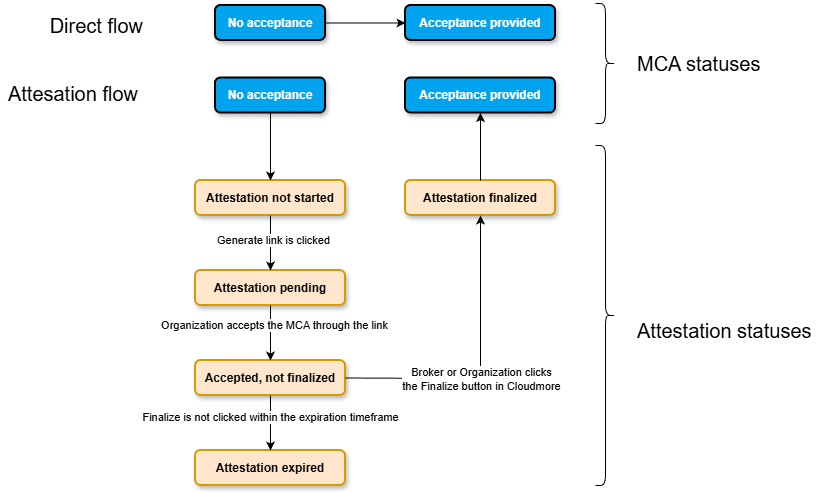
MCA acceptance can be provided either Directly or through Attestation:
-
Direct flow - The broker records the customer’s acceptance directly in Cloudmore. They enter the details of the person who accepted the agreement on the customer’s behalf (name, email and acceptance date), and the acceptance is sent to Microsoft straight away. No attestation link is involved.
-
Attestation flow - Cloudmore generates an attestation link that is sent to the customer, who reviews and accepts the agreement through it. The broker then clicks Finalize to record the acceptance with Microsoft. The attestation must be finalized before it expires, otherwise a new link has to be generated.
|
MCA Status |
What it means |
MCA details modal buttons |
|---|---|---|
|
No acceptance |
No acceptance exists. This customer has severely restricted subscription management capabilities until acceptance is provided. |
|
|
Acceptance provided |
The customer has a valid Microsoft Customer Agreement acceptance on record. Subscription management is fully available. |
|
|
Acceptance invalidated |
Acceptance invalidated. Usually a result of Microsoft invalidating old acceptances. A new attestation is required. |
|
|
Attestation Status |
What it means |
Attestation details modal buttons |
|
Attestation not started |
The attestation flow has not been started, and no attestation link has been generated yet. |
|
|
Attestation pending |
An attestation link has been created, but the customer has not yet accepted the agreement. |
|
|
Accepted, not finalized |
The agreement has been accepted, but Broker has not yet clicked “Finalize”. Click Finalize to record the acceptance with Microsoft. |
|
|
Attestation expired |
The attestation was not finalized in time and has expired. Generate a new attestation link to start again. |
|
|
Attestation finalized |
Acceptance has been recorded via partner attestation. |
|
Creating a partner attestation
An attestation records a customer's acceptance of the MCA. To complete an attestation, three steps must occur:
-
Create the attestation
-
Provide acceptance via the generated link
-
Finalize the attestation
Step 1: Create the attestation
-
Find the customer tenant in the list.
-
Click Actions > Create New Attestation.
-
In the modal, enter the details of the person at the customer organization who has agreed to the MCA (first name, last name, email address, phone number).
-
Set Auto-Finalize on Acceptance to Yes if you want the attestation to finalize automatically as soon as the customer clicks the agreement link. If set to No, you will need to return and finalize it manually.
-
Click Generate agreement link.
The modal refreshes and shows the generated agreement link and the current attestation status.
Step 2: Provide acceptance
Send the generated agreement link to the designated contact at the customer organization. When they open the link and accept, the attestation status updates.
Step 3: Finalize the attestation
If Auto-Finalize on Acceptance was set to Yes, finalization happens automatically.
If it was set to No, return to the Microsoft Customer Agreement page once acceptance has been provided (status shows Attestation pending), then click Actions > Finalize Attestation.
Generating the MCA report
The MCA report lists all your tenants and their acceptance status. You can receive it by email.
-
On the Microsoft Customer Agreement page, click the download button (top right of the table).
Automating attestation via the API
If you are using the Cloudmore API to onboard customers and want to automate the MCA attestation, see API Guide for MCA Partner Attestation (5.0).