
Overview

WithSecure Elements is a cloud-based cybersecurity platform that enables service providers to deliver comprehensive protection through a unified solution.
It combines endpoint protection, vulnerability management, collaboration security, and cloud-native threat detection into one integrated suite. With centralized management and flexible licensing, it helps organizations simplify security operations, improve visibility, and safeguard users, devices, and data across all environments.
Activating WithSecure on Broker Level
-
Sign in to Cloudmore as a Broker.
-
Navigate to Marketplace and select the WithSecure Elements or F-secure Protection Service for Business service.
-
Click Add service to start configuration to make it available for organizations.
-
When the service is added, a service partner is created in WithSecure.
-
If the service partner already exists, a new service partner will not be created.
-
Activating WithSecure on Organization Level
-
Sign in to Cloudmore as a Broker or Organization.
-
In the organization, open E‑store and select WithSecure Elements or F-secure Protection Service for Business.
-
Click Add service.
-
Check “I confirm that I want to add this service to this organization”.
-
Click Add Service to complete activation.
If you are signed in as a broker you will have to click Manage Organization and select Organizations before adding the service from the E-store.
Creating a WithSecure Subscription within the Organization
Open WithSecure service
-
Sign in to Cloudmore as a Broker or Organization.
-
In the menu, click My Services.
-
Select WithSecure Elements or F-secure Protection Service for Business.
-
Scroll down and click Subscriptions.
If you are signed in as a broker you will have to click Manage Organization and select Organizations before navigating to My Services.
Add subscription
-
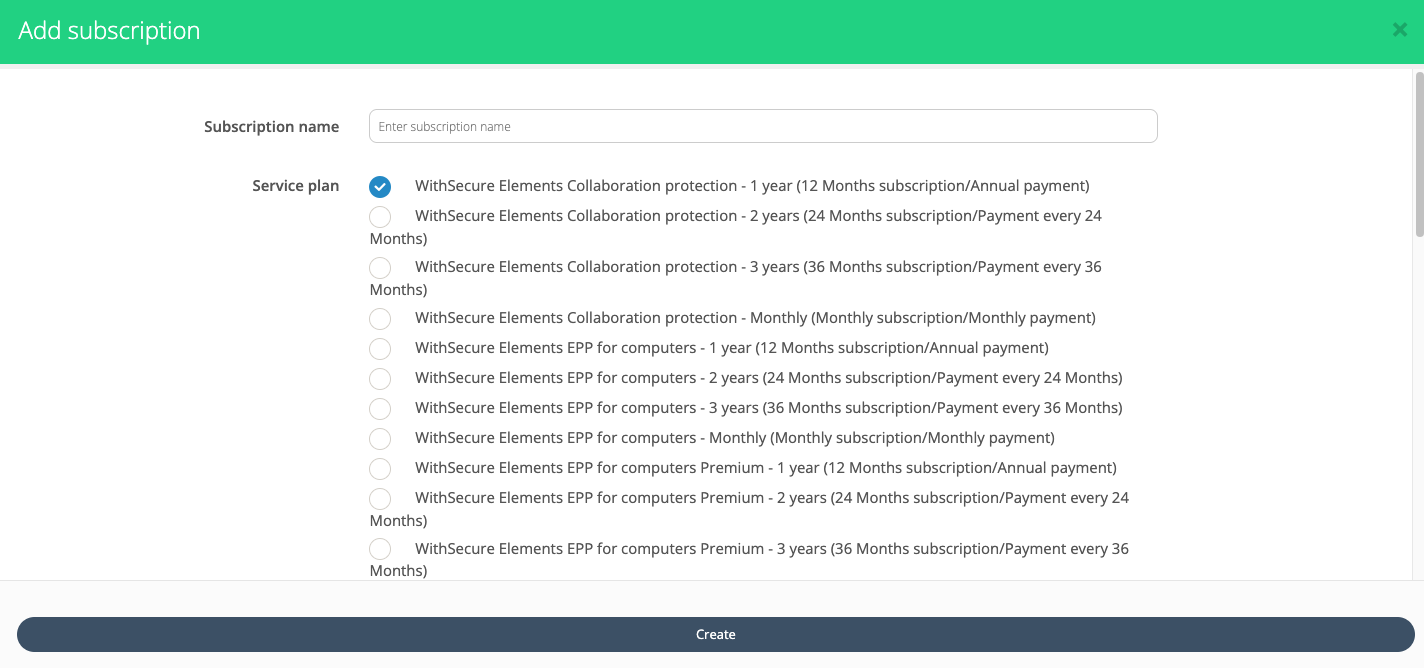
Click + Add subscription.
-
Enter the Subscription name.
-
Select the product.
-
Add the quantity.
-
Click Create.
Subscription Information
-
One active subscription per product per organization is supported.
-
Once the subscription is created in WithSecure, a license key will be available in the subscription view.
-
The quantity can be changed and the subscription can be canceled in Cloudmore.
Additional Notes
If you would like to become a Seller in Cloudmore and offer WithSecure to your brokers and organizations, additional configuration is required beyond the standard Broker setup outlined in this guide. This includes obtaining API access from WithSecure, configuring the Cloudmore Service Connector with those credentials, and setting up your WithSecure product catalog (SKUs, terms, and pricing) for provisioning and billing.