
Overview
This document explains how to help customers manage their Azure budgets by setting clear, trackable spending limits that simplify monitoring and control.
Cloudmore lets you:
-
Set multiple email notifications to inform customers of their current spending percentage.
-
Suspend a subscription once it reaches 100% of the spending budget.
Suspension may cause service disruption, downtime, or data loss. Budgets can be adjusted anytime and applied to organizations or individual subscriptions.
Steps to apply a budget to an organization
-
Log in to Cloudmore.
-
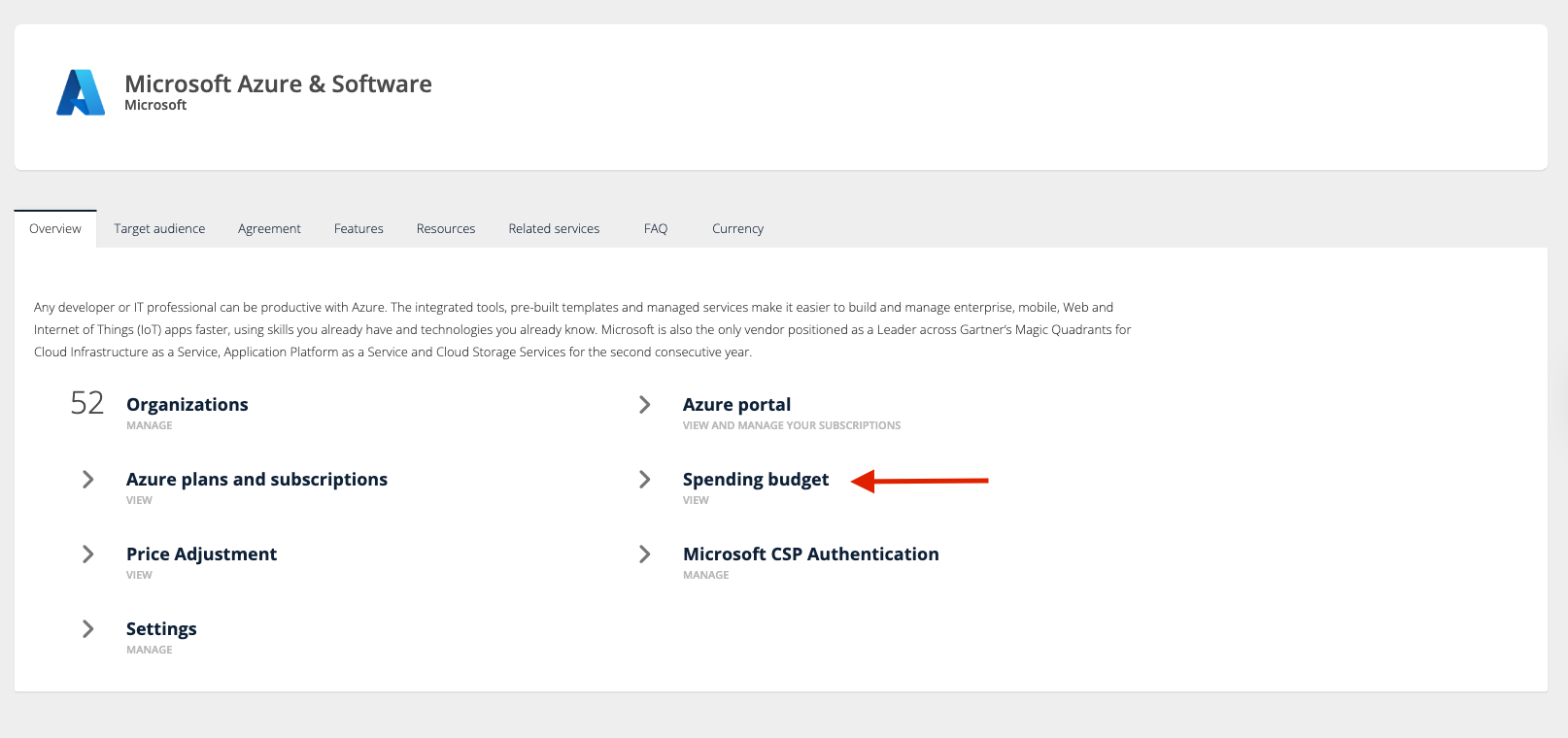
Go to My Services > Azure on the Broker Menu.
-
Click Spending Budget.
-
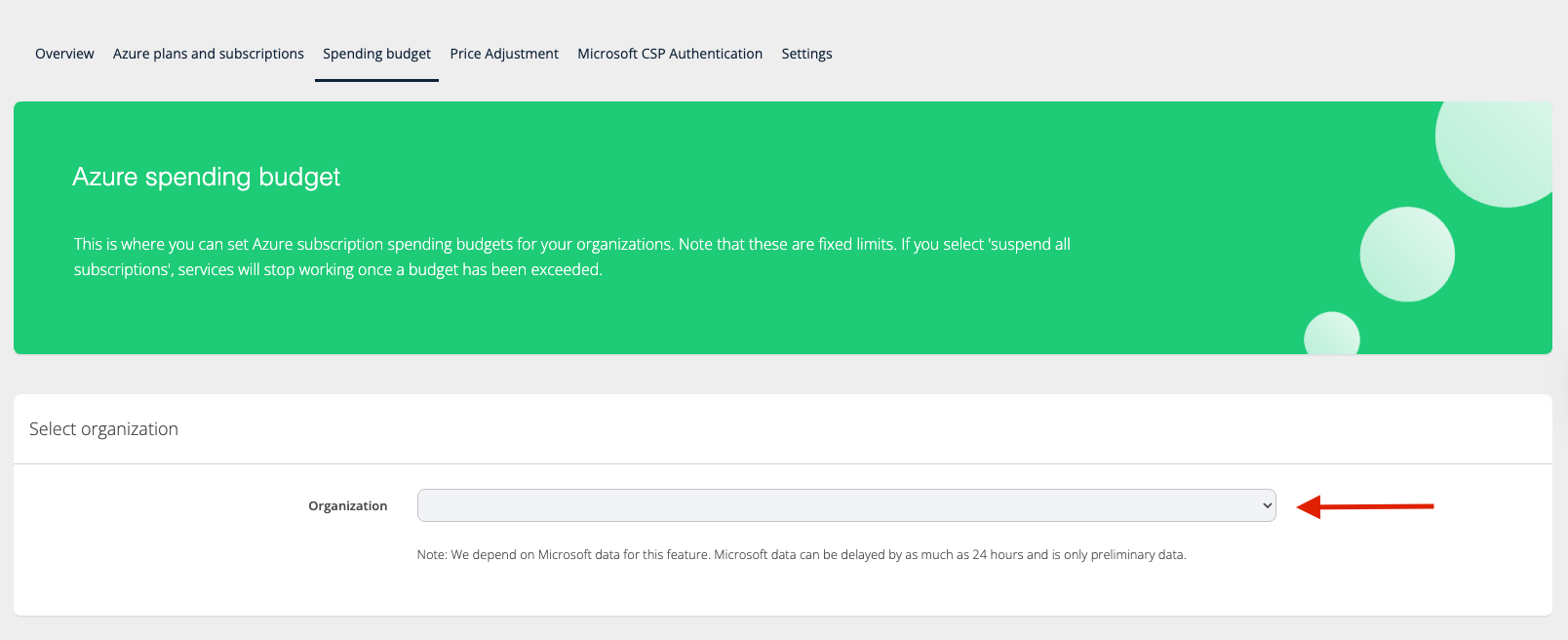
Select an organization from the drop-down.
-
After selecting the organization, scroll down:
-
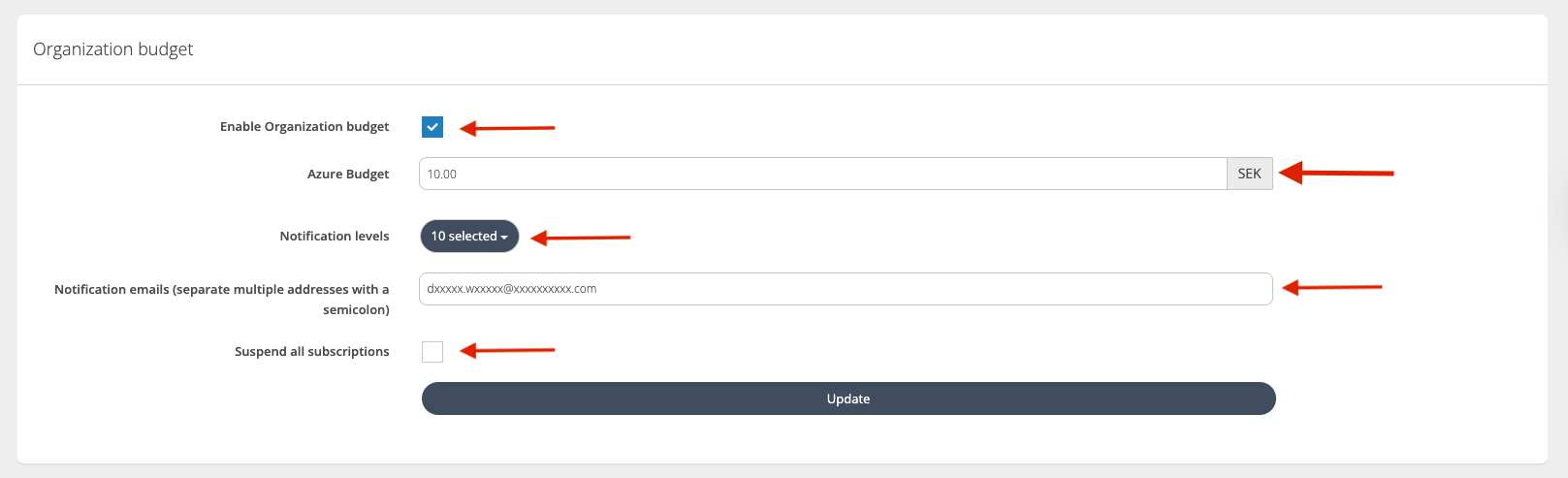
Check Enable Organization Budget
-
Enter the required Azure service budget.
-
Select the Notification Level from the dropdown to trigger an email.
-
Enter one or more email addresses for notifications when each budget level is reached. (Separate addresses with semicolons.)
-
Click Suspend all subscriptions to suspend subscriptions at the 100% budget level.
-
This may cause service disruption, downtime, or data loss. Budgets can be adjusted anytime.
-
Uncheck Suspend all subscriptions or raise the Azure Budget above 100% to restore services.
-
-
Click Update to apply changes.
-
-
To apply the budget to a subscription, scroll down:
-
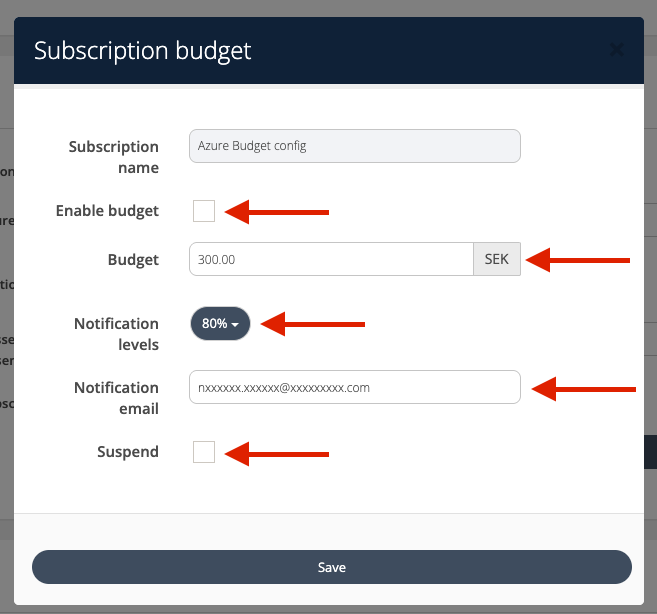
Select a subscription to activate or amend the details by clicking on the Actions key, then on Budget.

-
Check the Enable budget box and enter the required Budget.
-
Select the Notification Level from the dropdown to trigger an email.
-
Enter one or more email addresses for notifications when each budget level is reached. (Separate addresses with semicolons.)
-
Press Save to apply the budget parameters.
-