
Overview
The agreements functionality in Cloudmore allows you to manage customer agreements efficiently.
You can create or update new agreements that your customers must sign to use the platform or any of the services.
This feature also enables you to track which organizations have signed the agreements, the date they signed them, and the specific person who signed them, ensuring compliance and easy record-keeping.
As a broker, this article provides an overview of the Microsoft Customer Agreement (MCA), Custom Service Agreement, and Organization Agreement, explaining their differences, contexts, and use cases.
|
|
Organization Agreement |
Custom Service Agreement |
Microsoft Customer Agreement (MCA) |
|---|---|---|---|
|
What does it cover? |
It includes all the terms and conditions of using the platform, acceptable usage, details on how to end the agreement, handle disputes, etc. |
It includes standard terms of service, covering acceptable use, privacy policies, and liability limits, ensuring both parties understand their obligations for the services created by the broker. |
This includes the General Terms, the DPA, the applicable Product Terms and SLAs, and any additional terms Microsoft presents when an order is placed. |
|
Who signs it? |
Organization - Organization Admin |
Organization - Organization Admin |
Organization or Broker (on behalf of the organization) |
|
When is it signed? |
When the organization admin logs in for the first time. Note: The broker should have enabled agreement signing. |
When the organization admin adds the custom service from the E-Store |
Before the organization intends to create subscriptions for the service. |
Microsoft Customer Agreement (MCA)
Description and Purpose
A Microsoft licensing agreement designed for automated processing, dynamic updating of terms, transparent pricing, and enhanced billing management capabilities. It is designed to simplify the purchasing process and can be updated as new products are added.
If the Microsoft Customer Agreement (MCA) hasn't been accepted, Cloudmore will prompt users to accept the agreement before they can access the subscription page to add or manage subscriptions.
Organization Approval of the Microsoft Customer Agreement in Cloudmore
👤 Organization: Organization Admin
-
Log in to Cloudmore.
-
Navigate to Organization Menu > My Services > Microsoft O365 CSP Direct > Subscriptions.
-
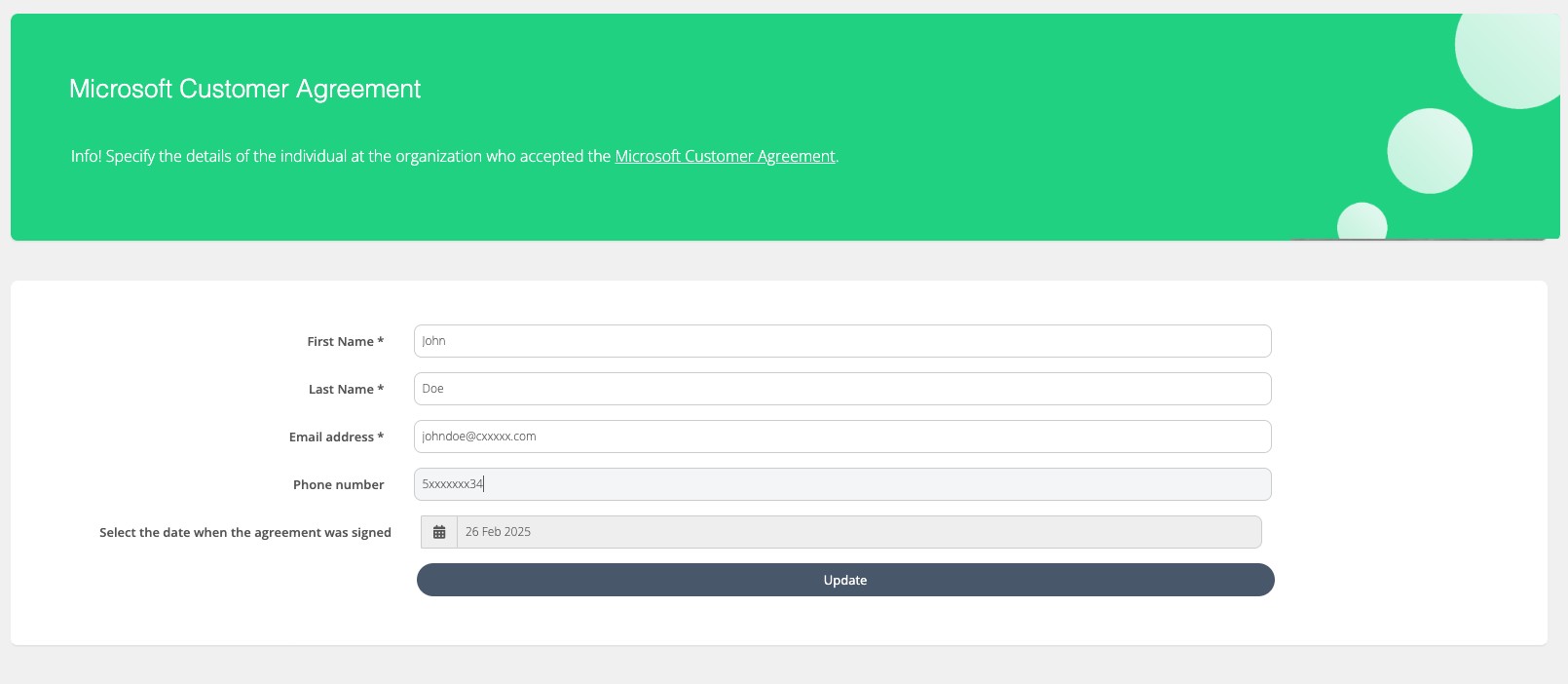
The MCA acceptance form will appear. Fill out the form and click Update. This will automatically accept the MCA agreement in the Microsoft Partner Center, allowing the user to continue managing their O365 subscriptions.
Broker Approval of the Microsoft Customer Agreement on behalf of Organizations (Alternate Approach)
👤 Broker: Super Admin; Global Admin
-
Log in to Cloudmore
-
Navigate to Broker Menu > My Services > Microsoft O365 CSP Direct
-
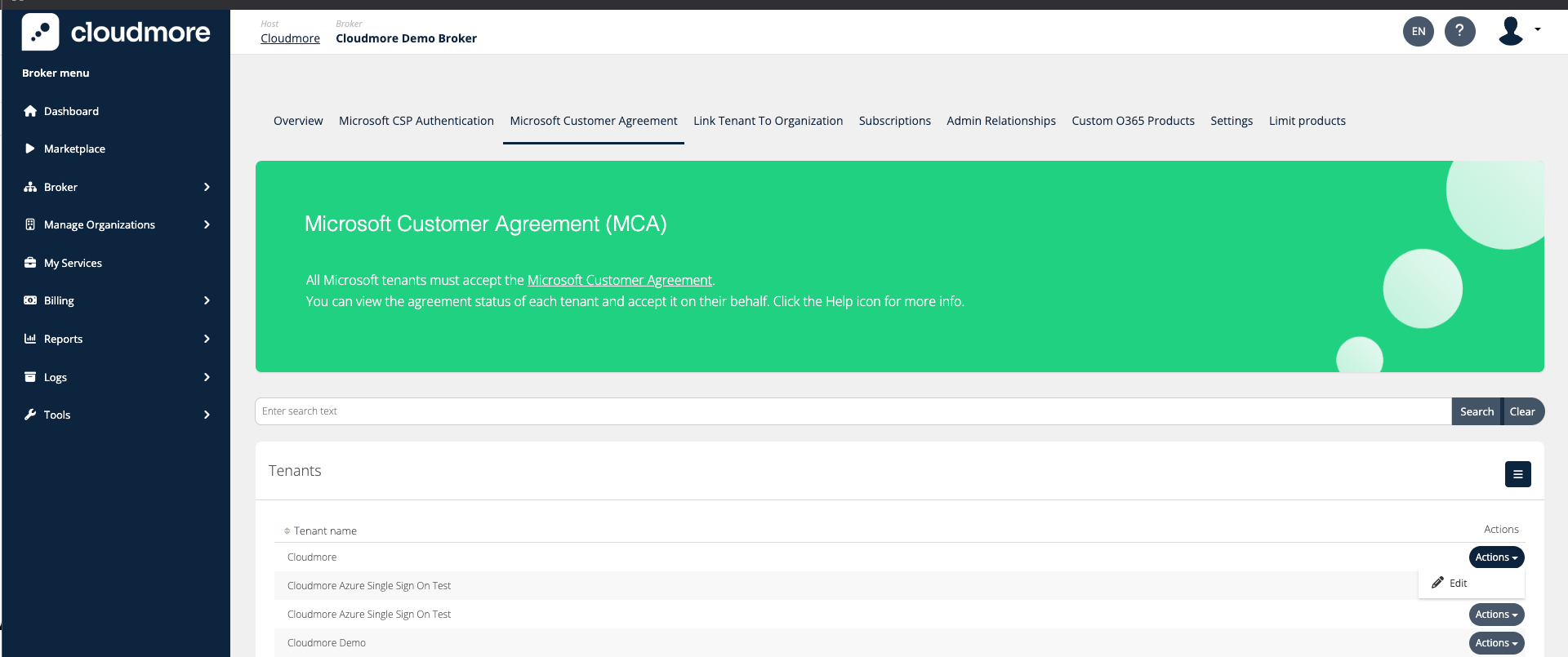
Click on Microsoft Customer Agreement.
-
-20260331-084637.png?cb=c13cdcc9c29c5a579ee2f2c216639e37)
You will see a list of your Microsoft tenants. To accept the agreement on behalf of your customer, click on Actions > Edit.
-
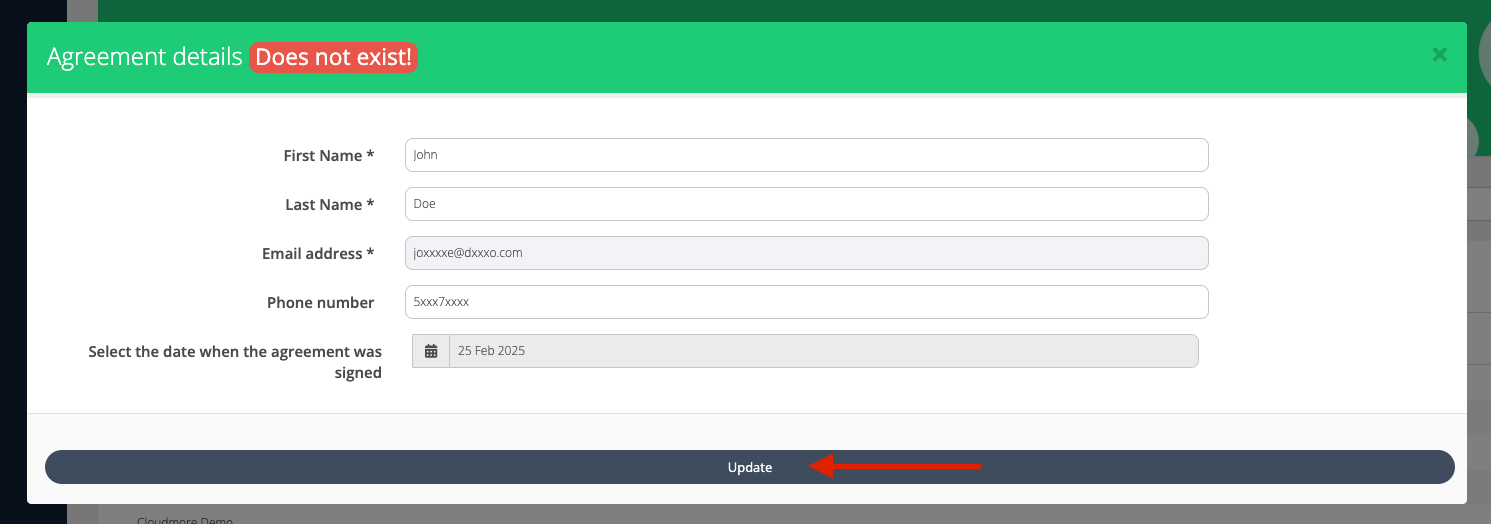
The Microsoft Customer Agreement acceptance form will appear. Fill out the form and click Update. This will automatically accept the MCA agreement in the Microsoft Partner Center, allowing you to continue managing O365 subscriptions for your customer.
How to Check Which Organizations Have Accepted the Agreement
-
Navigate to the Broker Menu >My Services > Microsoft O365 CSP Direct.
-
Click on Microsoft Customer Agreement
-
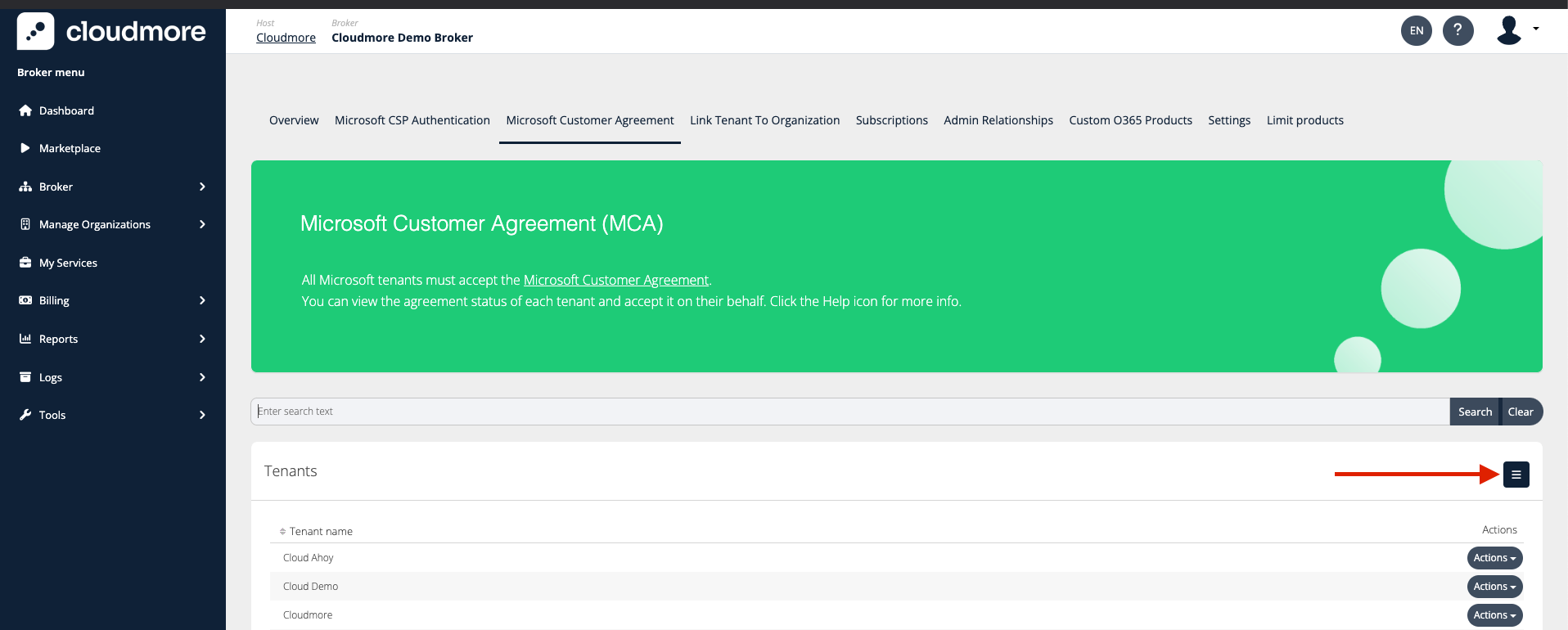
Click on the hamburger menu located in the center-right of the screen.
-
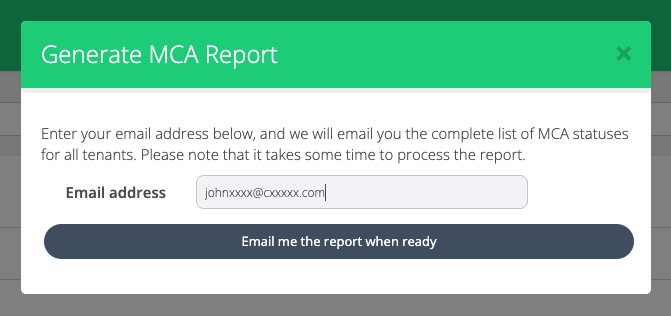
Enter the email address in the pop-up that appears for the report to be sent.
Custom Service Agreements
Description and Purpose
You can create custom service agreements that organizations must sign when adding services from their e-store.
This ensures all terms are agreed upon before use, making the service adaption process smooth and compliant. It helps manage and enforce agreements, clarifying responsibilities for all parties involved in the context of the service.
Steps Involved to Create a Custom Service Agreement
👤 Broker: Super Admin; Global Admin
-
Navigate to Broker Menu > My Services
-
Please select one of the custom services offered by you.
-
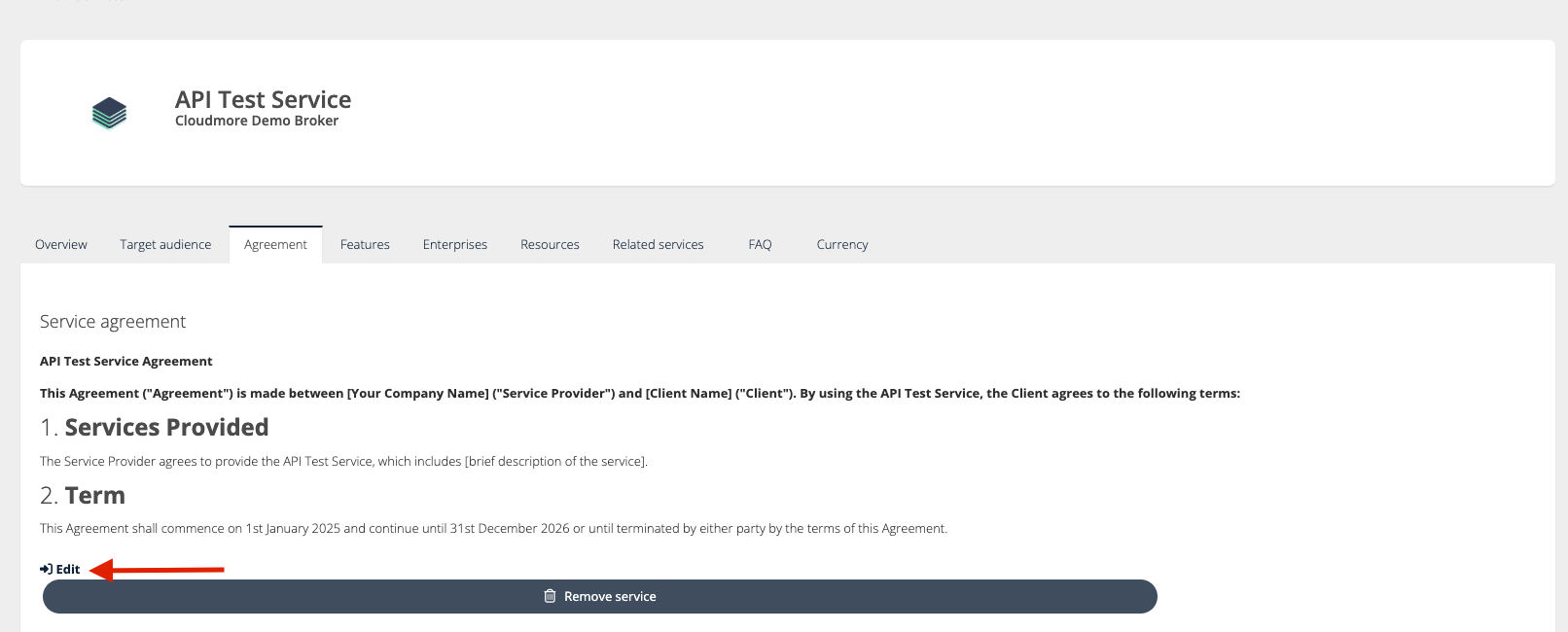
Navigate to the service overview window and open the Agreement window. Click on Edit.
-
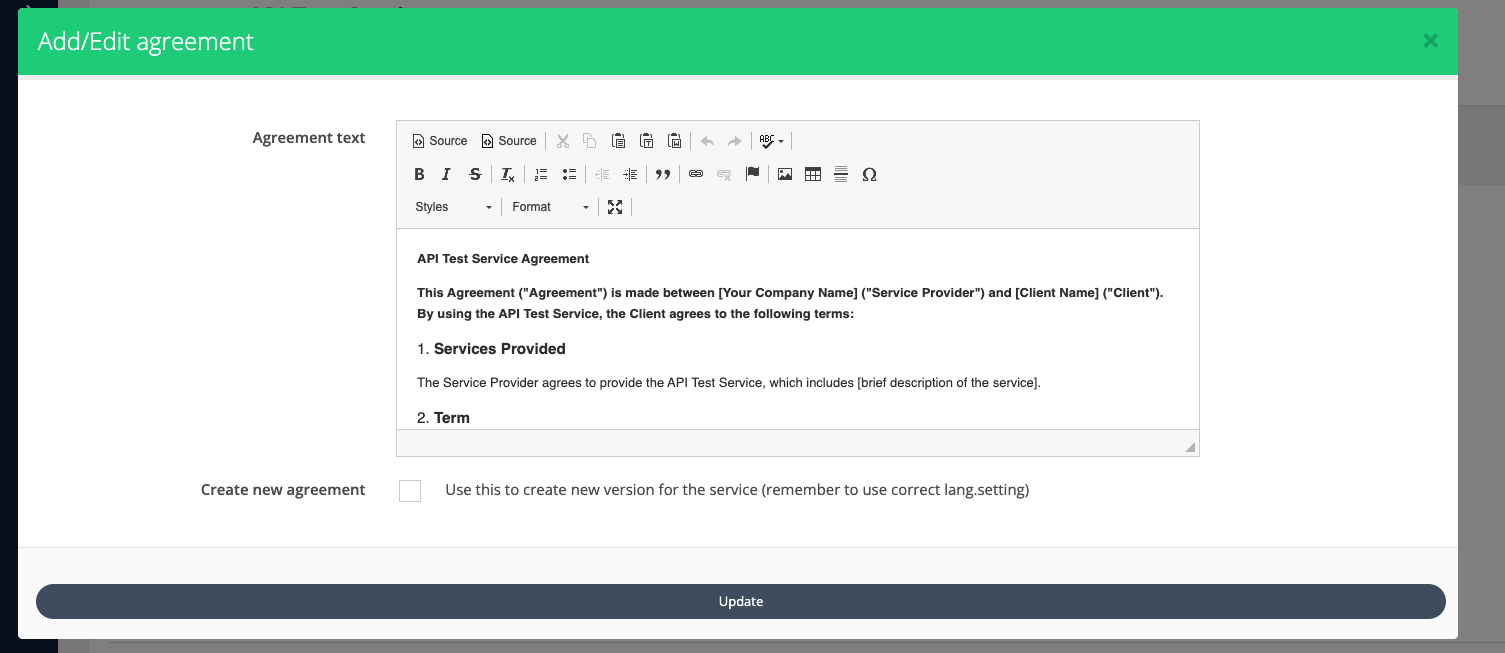
Complete the fields of the agreement and Click Update.
Signing the agreement
👤 Organization: Organization Admin
-
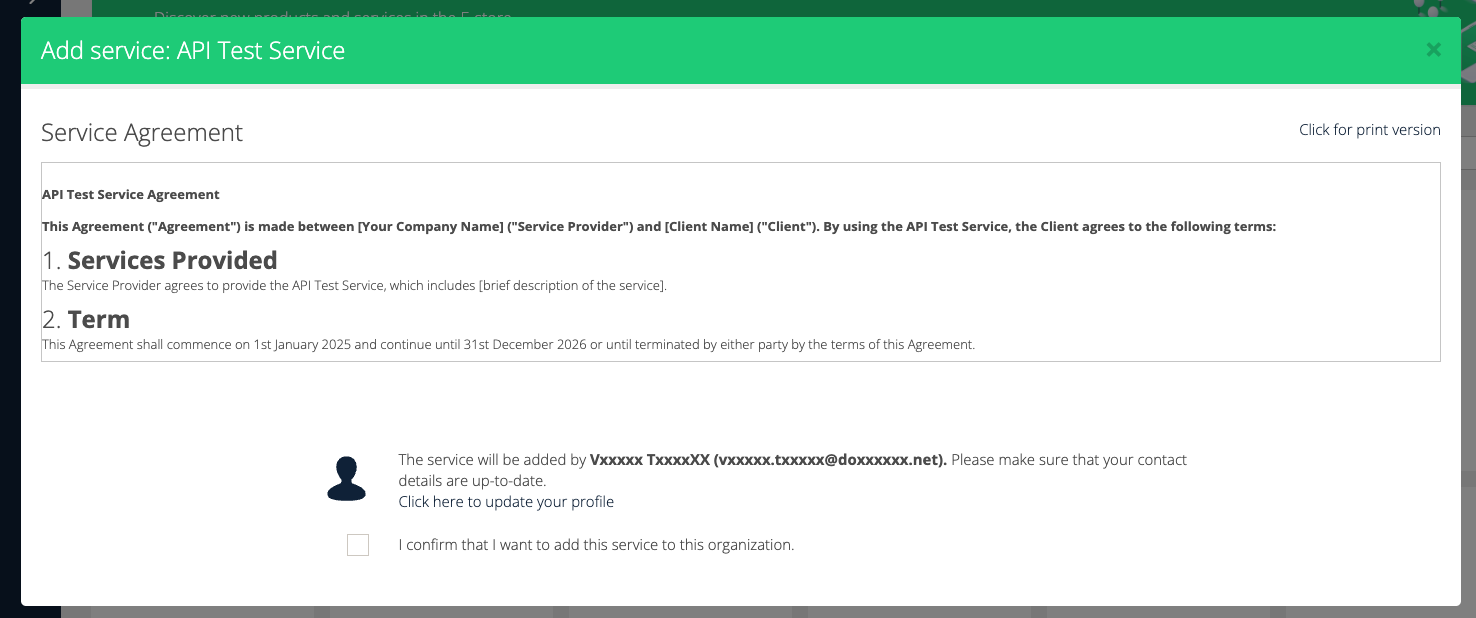
When an organization adds a service from its E-Store, this agreement becomes visible.
-
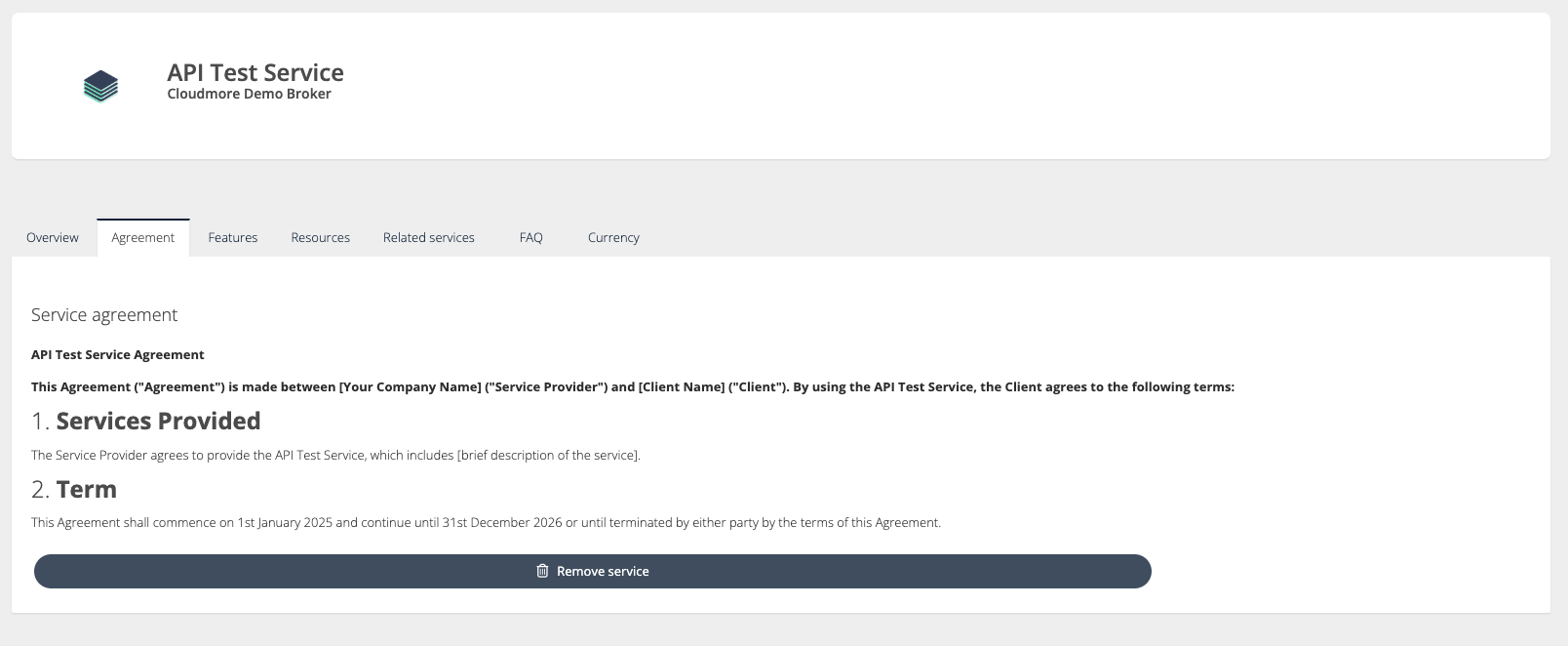
This agreement can be viewed by the organization by navigating to My Services > Service Name.
-
Click on the agreement tab to view the current agreement.
Organization Agreements
Description and Purpose
This functionality allows you to manage the agreements your organizations need to sign when they first log into the platform.
You can create new agreements and set their status to 'current' to make them the default documents for signing. Additionally, you can view which organizations have signed the agreements and when.
Steps Involved to Create an Organization Agreement
👤 Broker: Super Admin; Global Admin
-
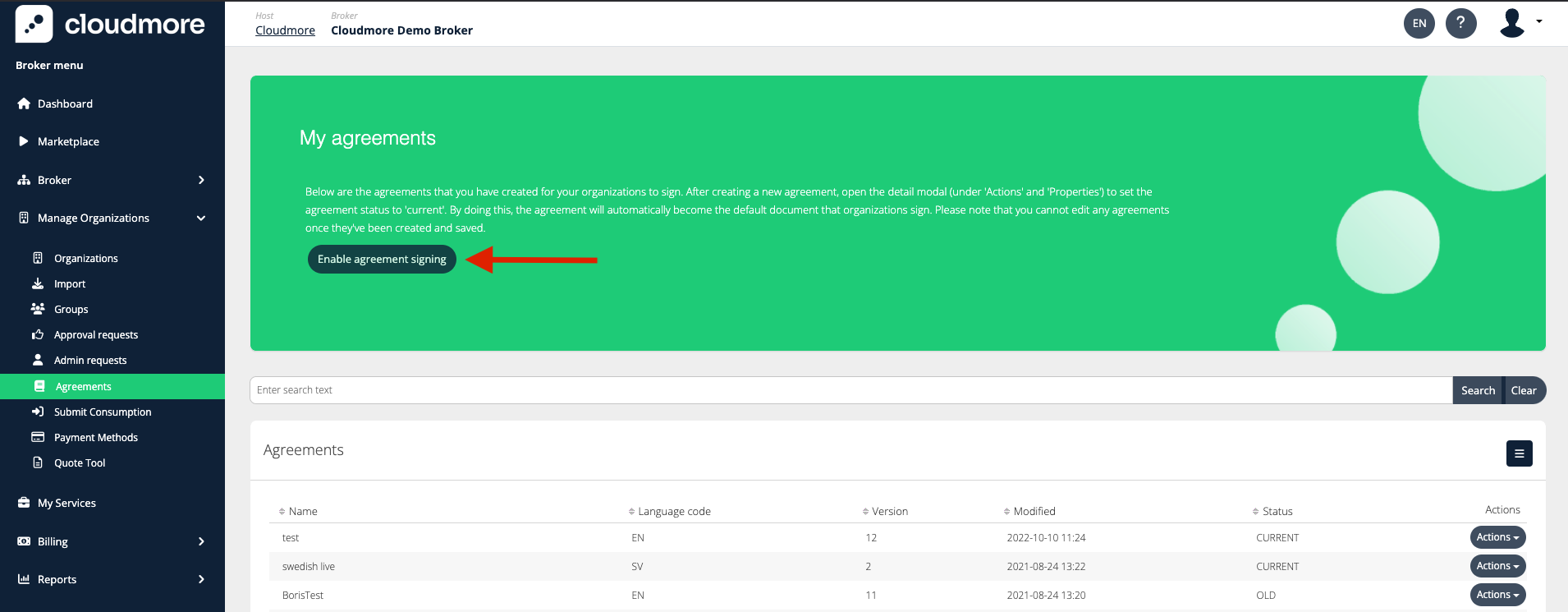
Navigate to Manage Organizations > Agreements.
-
To enable the Agreement service, click the Enable Agreement signing button.
-
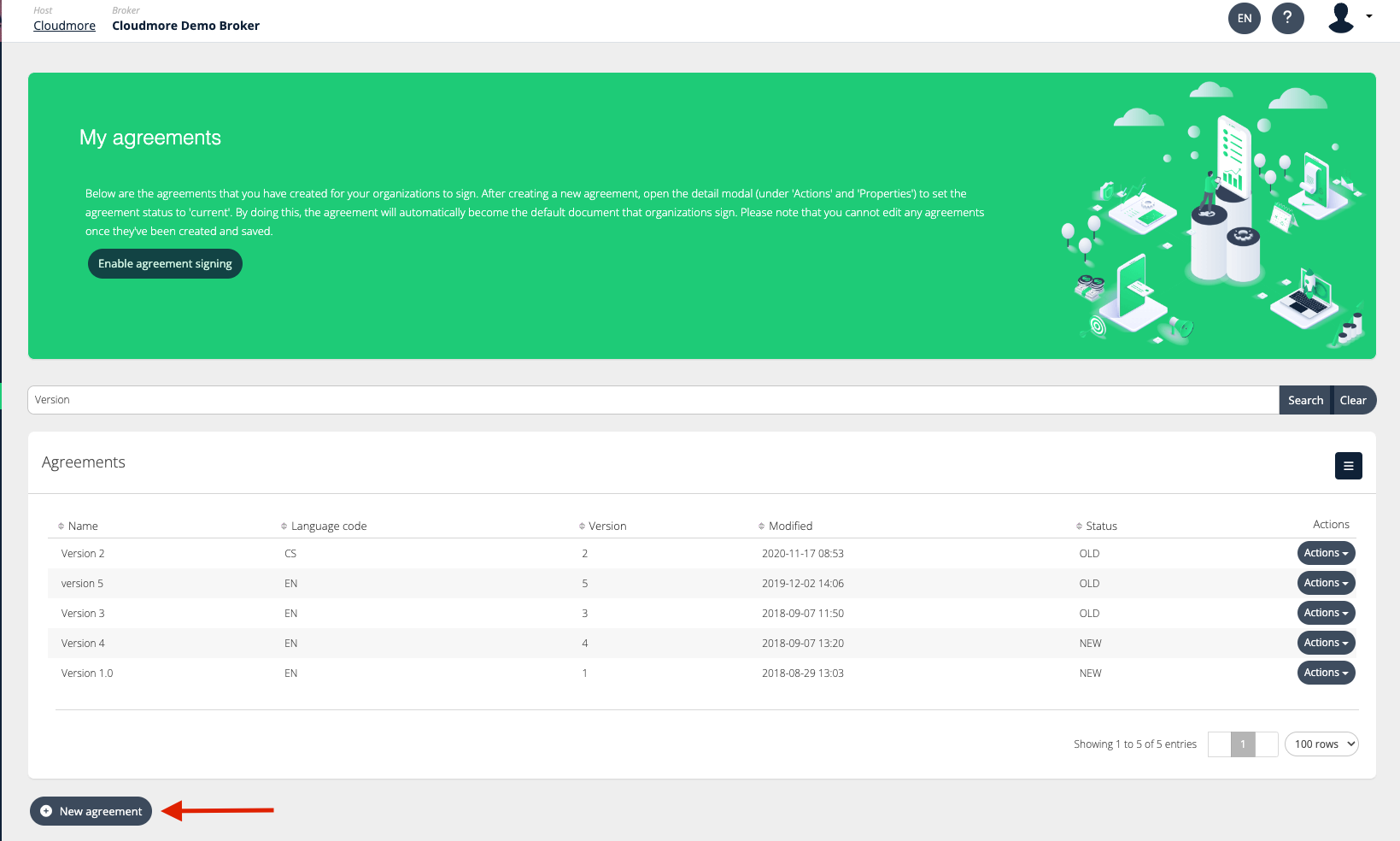
Click on the New Agreement button to open the Agreement template
-
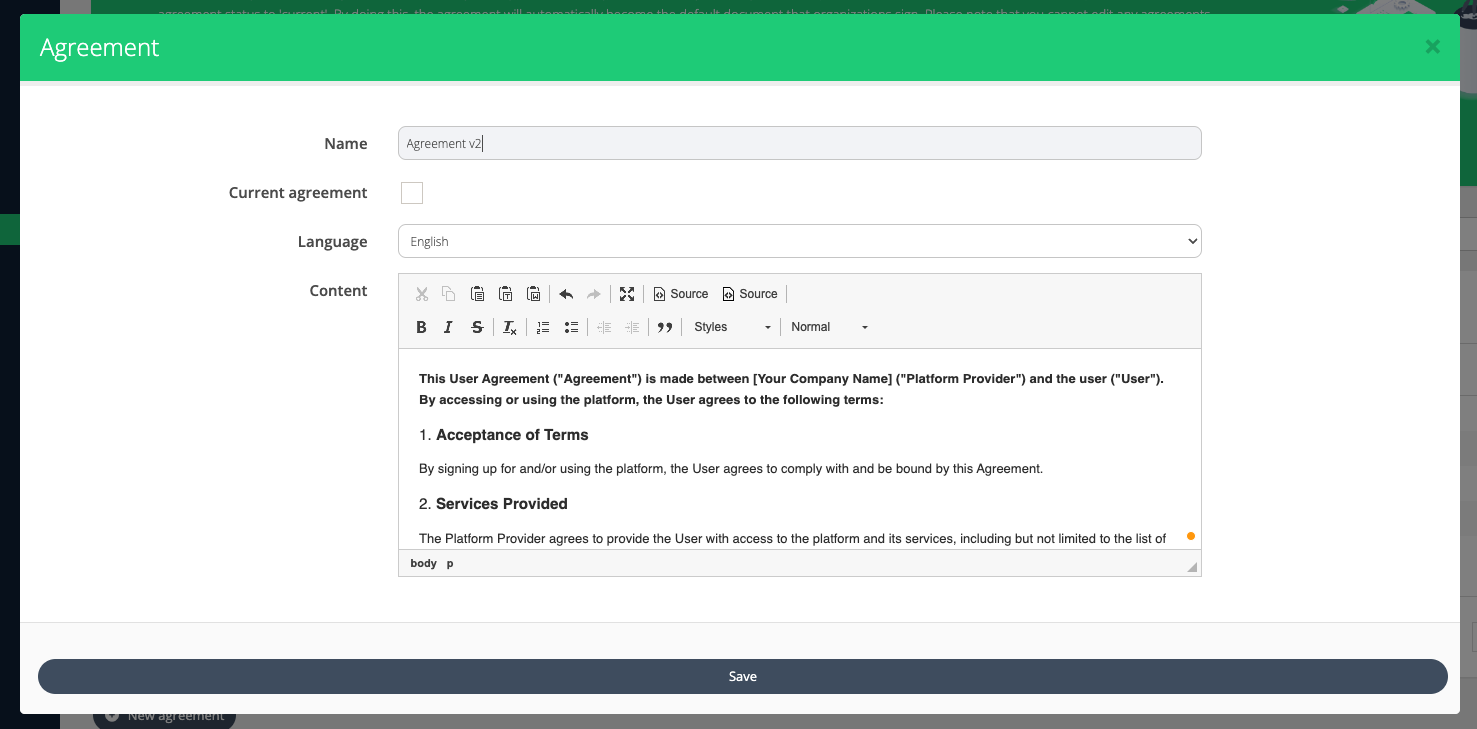
Complete the fields as required for the agreement and click Save.
Signing an Agreement
👤 Organization: Organization Admin
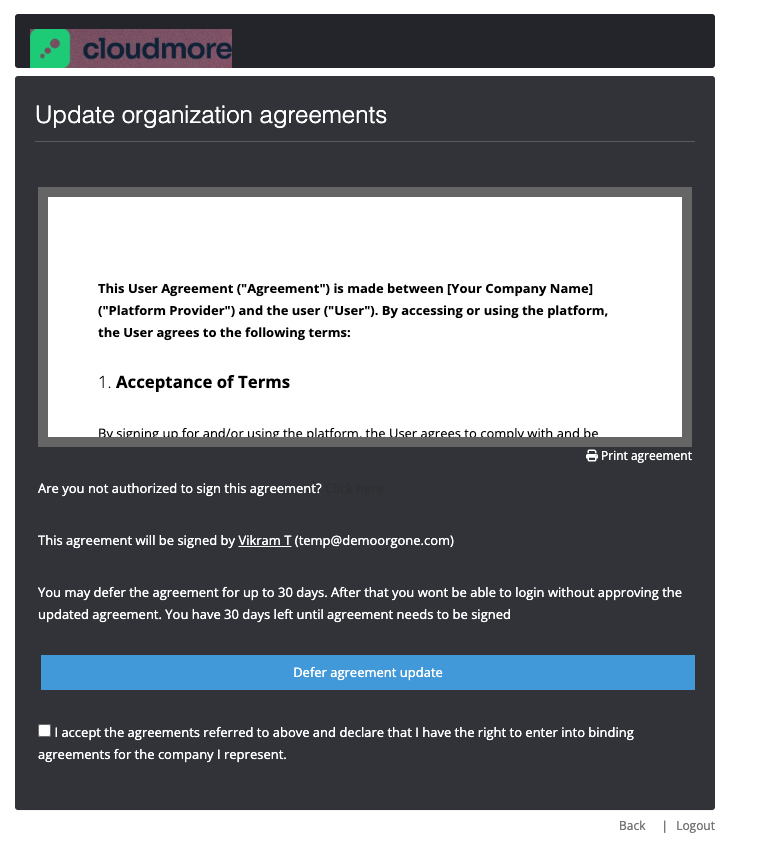
Once saved and the Current Agreement box is checked, each organization must either defer or electronically sign the agreement upon logging in.
-
Only one user per organization is required to sign the agreement.
-
If deferred, the agreement will continue to appear at login until signed.
-
After 30 days, users will be unable to log in until the agreement is signed.
-
After signing, users will see a confirmation message. Upon logging in, they will be taken directly to the Dashboard.