Overview
In order to create and manage subscriptions for your end customers acceptance to the Microsoft Customer Agreement has to be provided.
Acceptance can either be provided by direct customer acceptance or via partner attestation.
Direct customer acceptance relies on the global admin on customer tenant level accessing the Microsoft admin center and, once there, accepts the MCA.
Direct acceptance is a good way of managing the problem of making sure end customers provide acceptance to the MCA, it puts the two parties involved in the agreement in “direct” contact and allows partners to not worry about or involve themselves in the acceptance.
One problem with direct acceptance is that it outsources the action to the end customer, this might not be preferred with some partners who are managing customers and orders in a way where outsourcing actions to the end customer introduces uncertainty and potential follow up tasks.
If a partner does not wish to rely on direct acceptance they can use the partner attestation method provided by Microsoft.
Partner attestation allows a partner to attest to the end customer's acceptance by collecting acceptance through other means than direct acceptance and creating an attestation to verify acceptance of the MCA.
To create a valid attestation, three steps need to be completed.
-
Create attestation
-
Provide acceptance via link
-
Finalize attestation
Access Microsoft Customer Agreement
-
Log in to Cloudmore.
-
Navigate to My Services > Microsoft 365 CSP Direct > Overview > Microsoft Customer Agreement
Overview of acceptance statuses
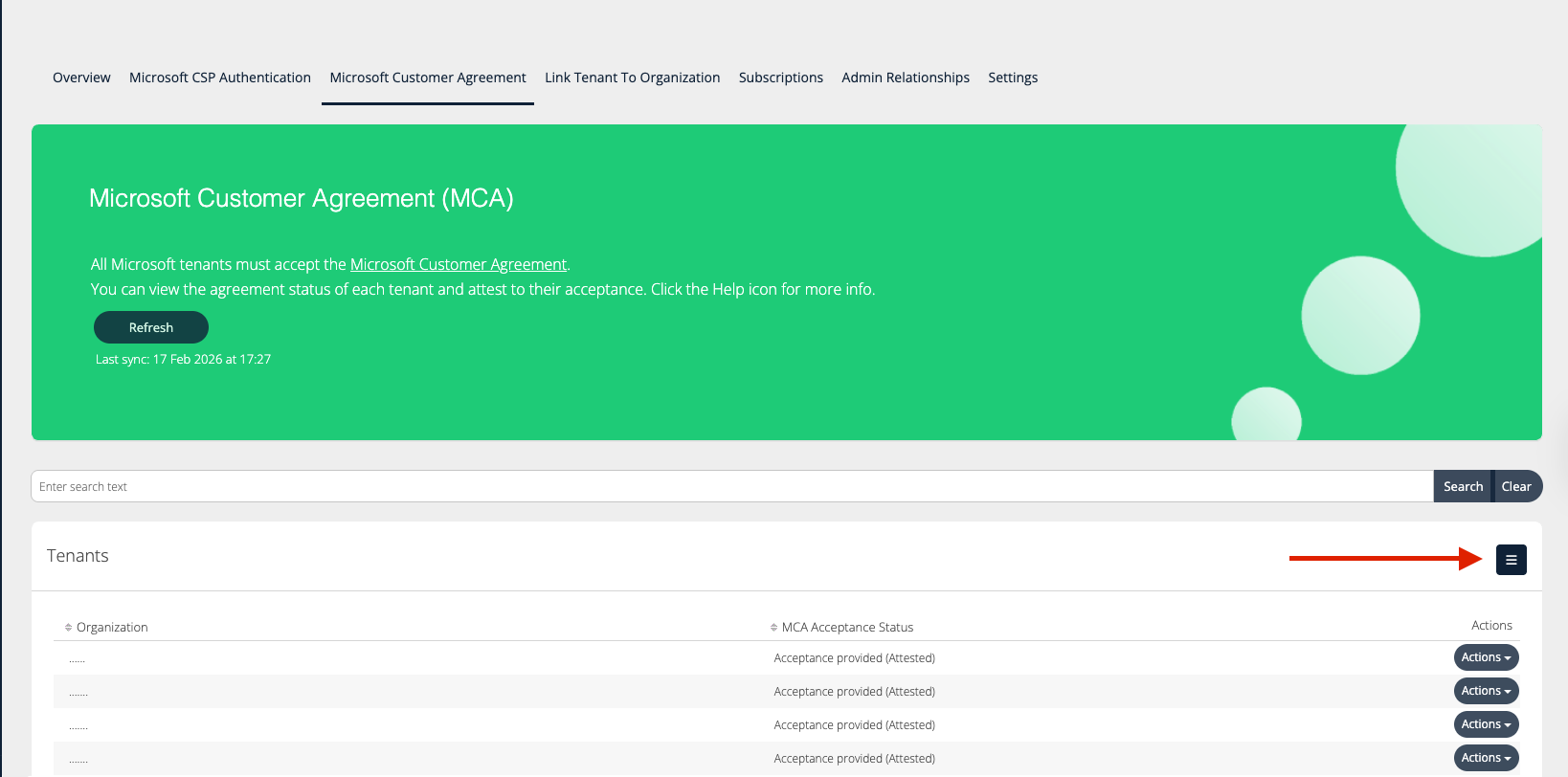
To get an overview of your customers acceptance statuses on the broker level:
-
Access the Microsoft 365 Direct service and select the Microsoft Customer Agreement
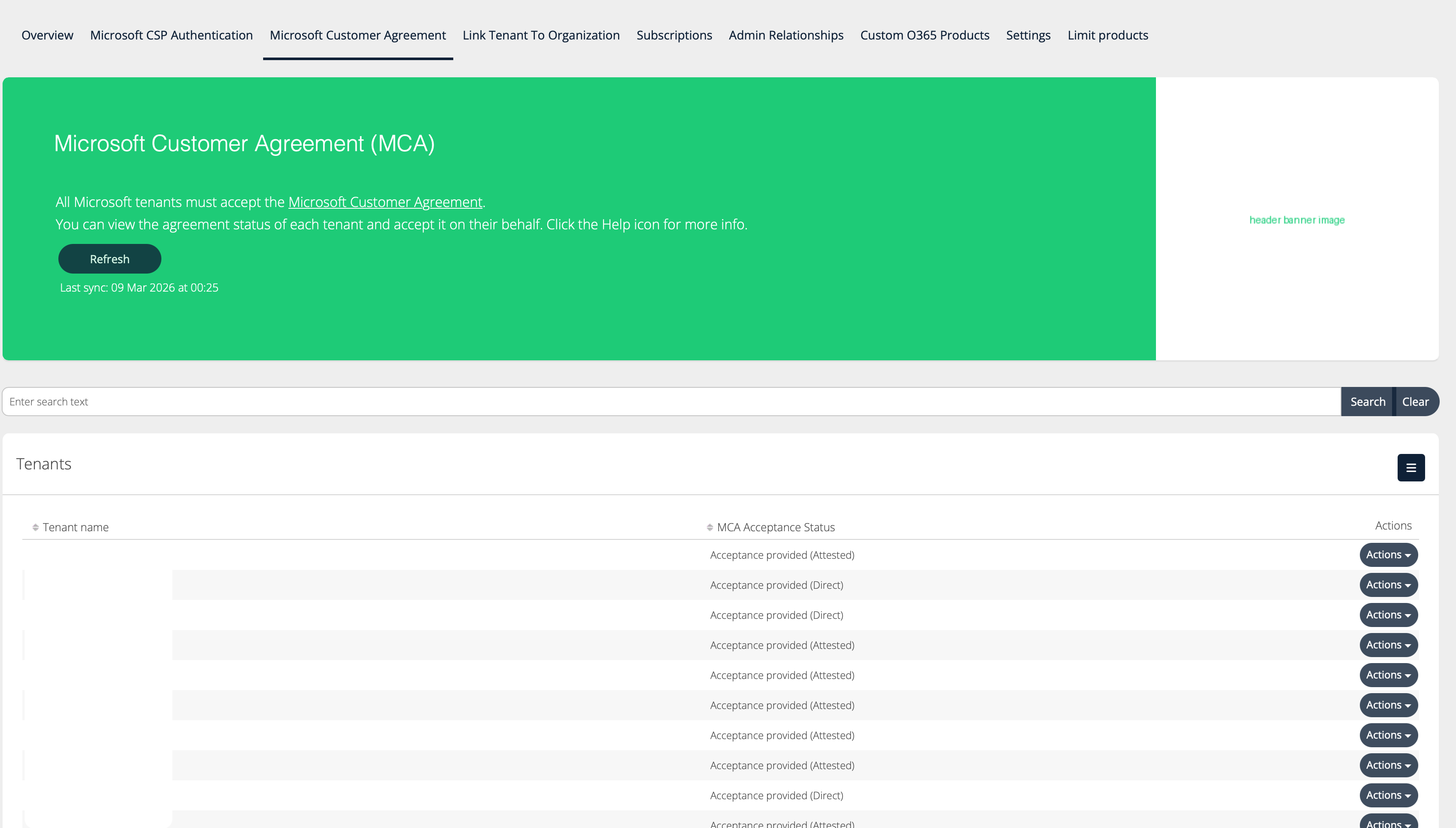
This page will list:
-
Tenant names: A list of your customers tenant names
-
Acceptance Status: The status of the end customer MCA acceptance
Possible statuses:
Acceptance provided (Attested): Acceptance has been provided via attestation.
Acceptance provided (Direct): Direct acceptance has been provided.
Attestation pending: An attestation has been created but has not been finalized. Finalize the attestation via actions.
No acceptance provided: No acceptance provided. This customer will have highly restricted capabilities for managing subscriptions. Ensure direct acceptance or an attestation is created in order to create and manage subscriptions.
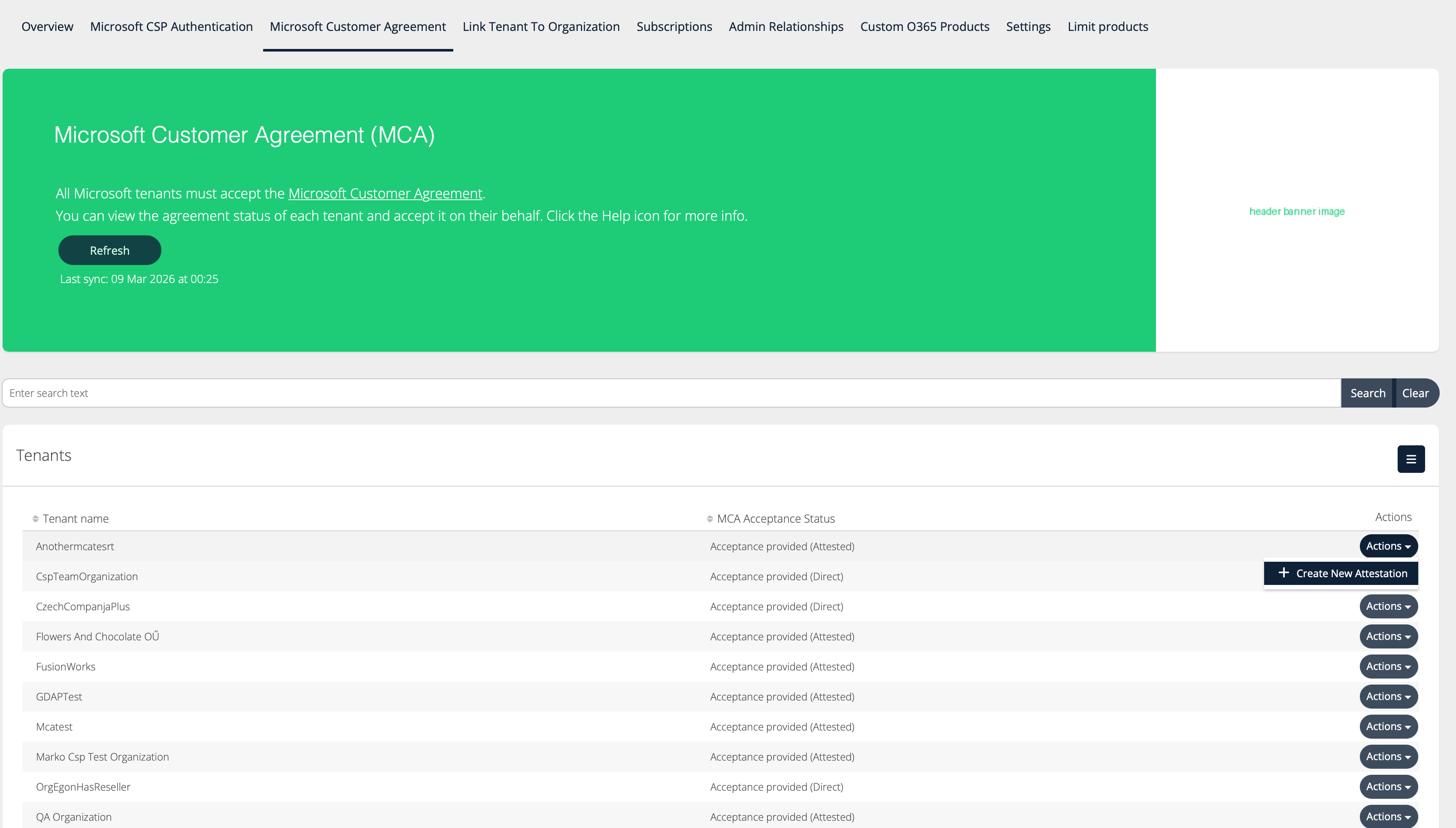
Each row will have an action drop-down. The available actions will depend on the acceptance state of the tenant in question.
Available Actions:
-
Create Attestation: Creates a new partner attestation
-
Available action in any state
-
-
View attestation: Display an attestation that has been created but not finalized
-
Available in the Attestation pending state
-
-
View agreement: Open the MCA agreement link in a new tab
-
Available in the Attestation pending state
-
Create MCA Partner Attestation
To create an attestation for one of your customers,
-
Locate the customer tenant in the list.
-
Click Actions > Create New Attestation
-
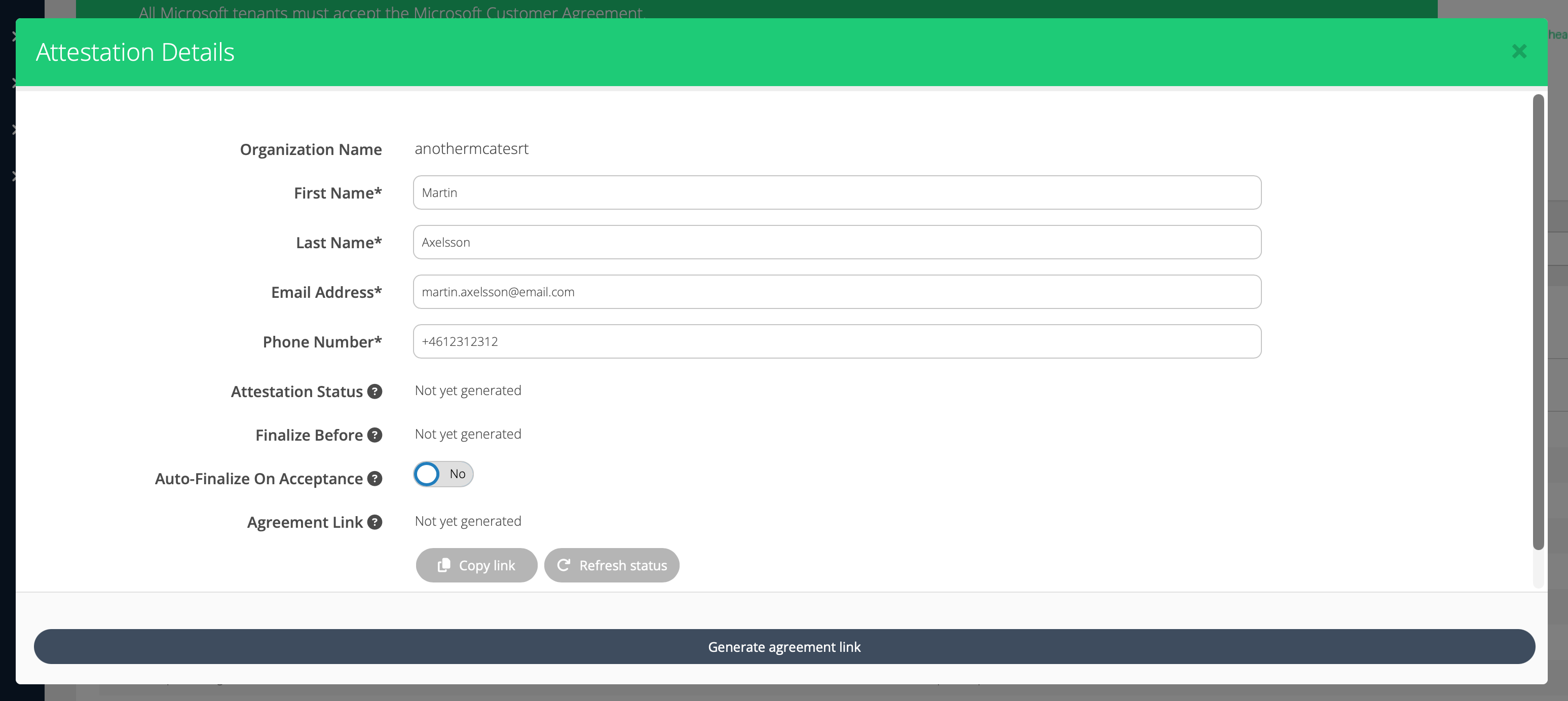
A new modal will open and some details needs to be provided. The details entered should indicate a user with the end customer who has agreed to the MCA.
Some information in the modal will not yet be available since the attestation itself is not yet generated at this point.
Auto-Finalize on Acceptance: This setting will allow the attestation to finalize as soon as acceptance is provided via the agreement link. If this setting is not set to Yes, you will have to return and finalize the attestation at a later stage.
-
Fill out the required information and click “Generate agreement link.”
Once “Generate agreement link” has been clicked, the modal will refresh its state and update with new information.

Attestation Status: Indicates the status of the attestation
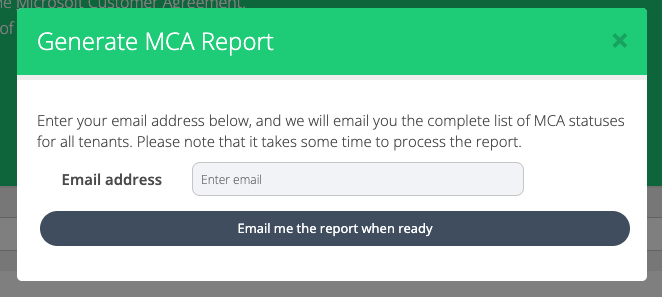
Generate MCA Report
The MCA report provides the tenants’ and their MCA status. This can be exported via email.
-
Click on the hamburger option.
-
Enter the email and click on Email me the report when ready.