
Overview
This guide explains how to activate the Acronis Cyber Cloud service at the organization level in Cloudmore so that subscriptions can be created and managed for that organization. If migrating an existing Acronis customer, include the customer’s Acronis Tenant ID during activation to link to the existing tenant.
Prerequisites
-
A Cloudmore organization already created and accessible in Cloudmore.
-
Acronis Cyber Cloud service enabled at the Broker level with valid integration credentials.
-
If the organization already exists in Acronis, the customer’s Acronis Internal ID (Tenant ID).
Add service to an Organization
-
Log in to the Cloudmore Broker portal.
-
Go to Manage organizations > Organizations and open the organization.
-
In the organization, open E‑store and select Acronis Cyber Cloud.
-
Click Add service.
-
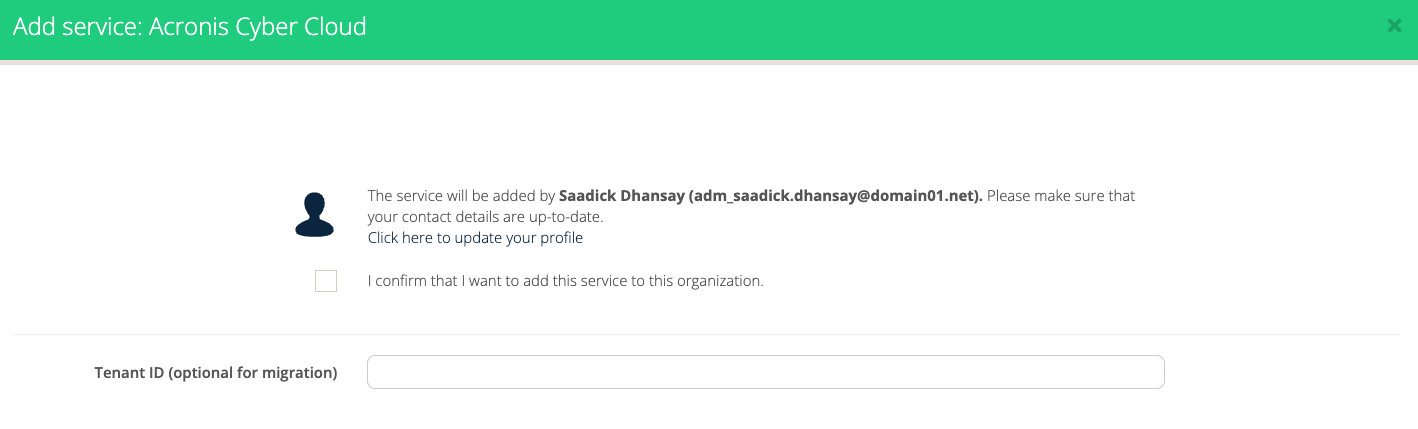
Check “I confirm that I want to add this service to this organization”.
-
If this organization is an existing Acronis customer, enter the Acronis Tenant ID as described below; skip if the organization is new to Acronis.
-
Click Add Service to complete activation.
Retrieve Acronis Tenant ID (existing customers)
-
Sign in to the Acronis partner portal and open Clients.
-
Find the customer, click the three dots next to the name, and select Show ID.
-
Copy the value shown as “Internal ID” and paste it into the Tenant ID field in Cloudmore during service addition.
After activation
Once the Acronis service is added to the organization, subscription creation and management become available in the organization’s subscriptions area. For large customer bases, bulk import can be used at Broker onboarding to auto‑create Organization accounts and map subscriptions.
Bulk import
-
Bulk import of Acronis customers are supported when adding the Acronis integration. The intergration will automatically create organization accounts and associated subscriptions in Cloudmore.
-
Duplicate accounts are not created; existing organizations are detected and preserved.
-
Important: This option is available only when newly adding the Acronis service at Broker level by selecting Selecting the “Migrate existing Acronis clients” checkbox and all imported subscriptions are created in production mode even if the Acronis tenant is in trial.
Tips and notes
-
For new Acronis customers, leave Tenant ID empty so Cloudmore creates a new Acronis tenant during the first subscription provisioning.
-
For existing customers, always use the Acronis Internal ID to avoid creating a parallel tenant and to retain customer history.