
Add Acronis Cyber Cloud to Cloudmore
To enable management of Acronis Cyber Cloud for customers, add the Acronis Cyber Cloud service and verify connectivity with a test Organization. Adding the service at the Organization level enables subscription creation and lifecycle management in Cloudmore.
Prerequisites
-
Acronis partner portal access and permission to create API clients.
-
Acronis API client details: Client ID, Client Secret, and Base/Datacenter URL.
-
Acronis partner Tenant ID.
Create Acronis API client
-
Sign in to the Acronis partner portal.
-
Open Settings, then select API clients.
-
Click + Create API client and assign a name for the API client.
-
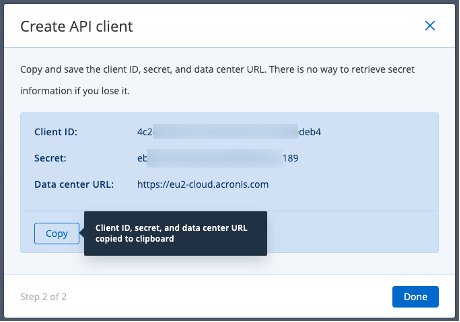
After creation, copy the Client ID, Secret, and Base/Datacenter URL and store them securely; the Secret cannot be retrieved later.
Retrieve Acronis partner Tenant ID
-
In the Acronis portal, open Monitoring > Audit log in the left side menu.
-
Locate the User signed in to the service event from the current login and open it.
-
Switch to JSON view and copy the tenant_id value.

Add Acronis Cyber Cloud at Broker
-
Sign in to Cloudmore as a Broker.
-
Navigate to Marketplace and select the Acronis Cyber Cloud service (ensure the vendor is Acronis).
-
Click Add service to start configuration.
-
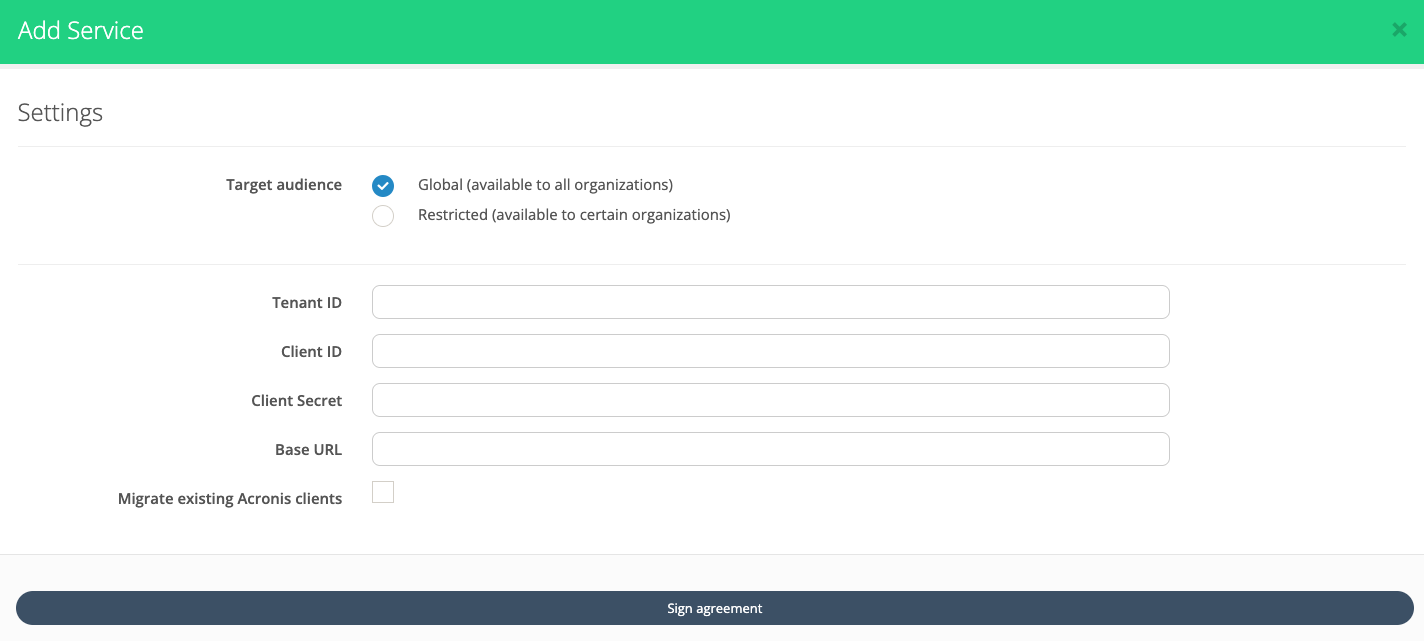
Enter required integration fields: Tenant ID, Client ID, Client Secret, and Base/Datacenter URL gathered earlier.
-
Optional: Select Migrate existing Acronis clients to automatically bulk migrate existing client data to Cloudmore; customers can also be added individually later.
-
The bulk migration can only be done when adding the service at broker level and must be selected at this step if you would like to bulk migrate existing Acronis clients.
-
-
Click Sign Agreement to complete service addition for the Broker.
Verify integration (optional)
Create a clean test Organization and confirm Cloudmore can provision to Acronis.
-
In Cloudmore (Broker), go to Manage organizations > Organizations and click + New organization; use a name that does not already exist in Acronis
-
Open the new Organization and navigate to E‑store.
-
Select Acronis Cyber Cloud
-
Click Add service
-
Check “I confirm that I want to add this service to this organization”.
-
Leave Tenant ID empty to allow Cloudmore to create the customer in Acronis.
-
Click on Add service to add the service to the organization.
-
Open Subscriptions and click + Add subscription; provide a subscription name and click Create.
-
In the Acronis portal, open Clients and verify the test Organization appears; creation may take up to two minutes, so refresh if needed.