Overview
Before creating subscriptions for Acronis Cyber Cloud, pricing needs to be set so that organizations are billed accurately. Prices can be applied across all organizations or tailored per organization and are setup on add-on level. For further detailed information regarding price management, please refer to Price List .
Open price list
-
Log in to the Cloudmore platform.
-
In the left navigation, click Billing and select Price list.
-
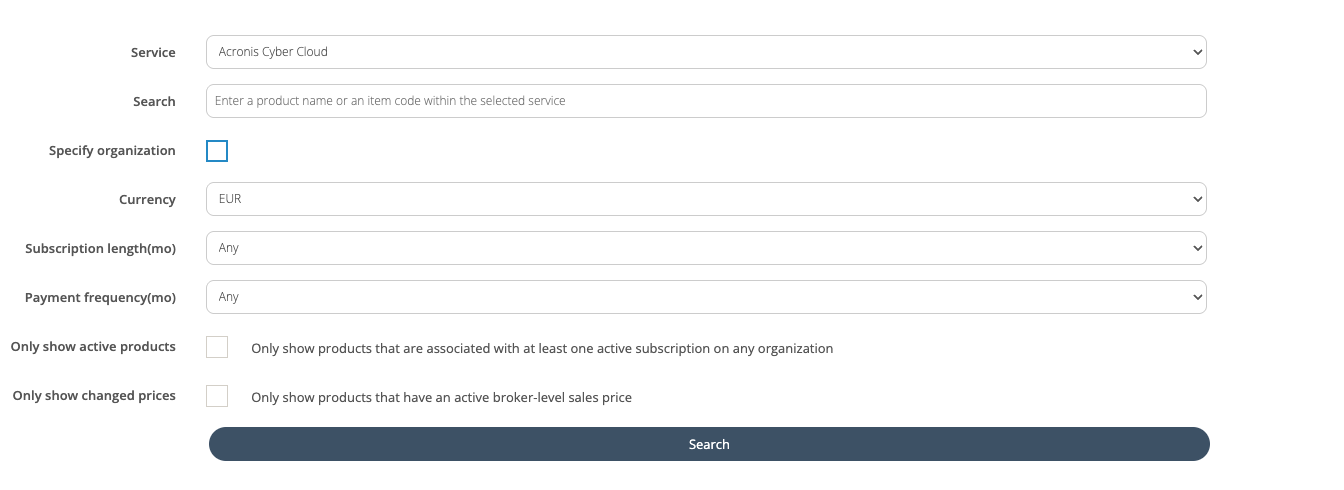
From the Service dropdown, choose Acronis Cyber Cloud.
Filter scope
-
(Optional) Click Specify organization to select an organization for organization‑specific pricing; leave unchecked to set a single price for all organizations.
-
Choose the working currency under Currency to view and manage prices in that currency.
-
Click Search.
-
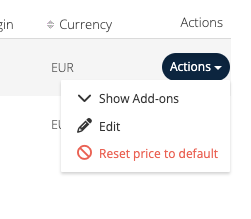
Click Actions next to the Acronis Cyber Product in the product list below.
-
Select Show Add-ons and all add-ons will be displayed.
Review product add-on list
-
The list displays all Acronis Cyber Cloud SKU’s.
-
Cloudmore calculates Margin and Margin % from cost and sales price.
Edit sales prices
-
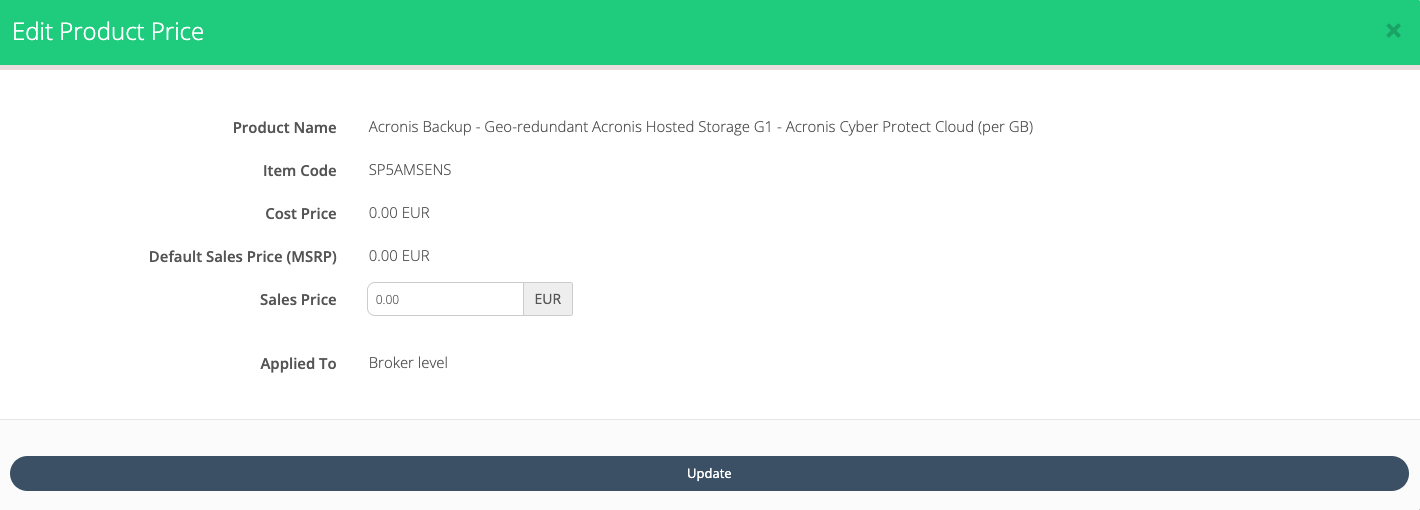
In the applicable SKU row, click Actions next to the applicable SKU and select Edit.
-
Update the Sales Price field, then click Update to save.
-
Repeat as required; changes can be made at any time to reflect updated pricing policies.