Overview
This page gives an overview of how you can manage the approval requests triggered by your customers. It gives instructions on how to filter requests, which information is presented and how to Approve or Reject these requests.
Manage Requests
Filters for Manage Requests
-
Search: This allows to search for approval requests by individual customer, service or action.
-
Status: This allows to filter approval requests by specific statuses.
-
New: A new approval request.
-
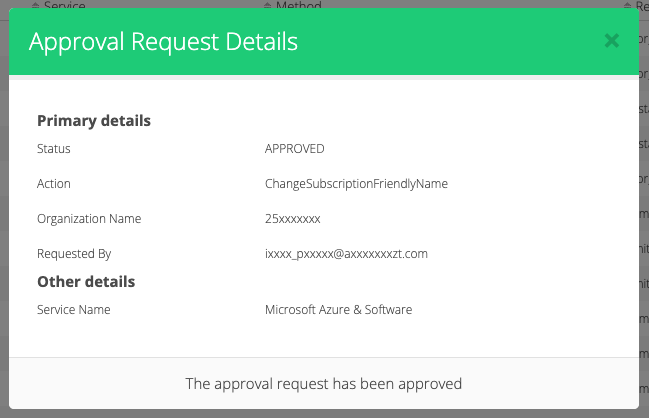
Approved: The approval request was approved by the Broker.
-
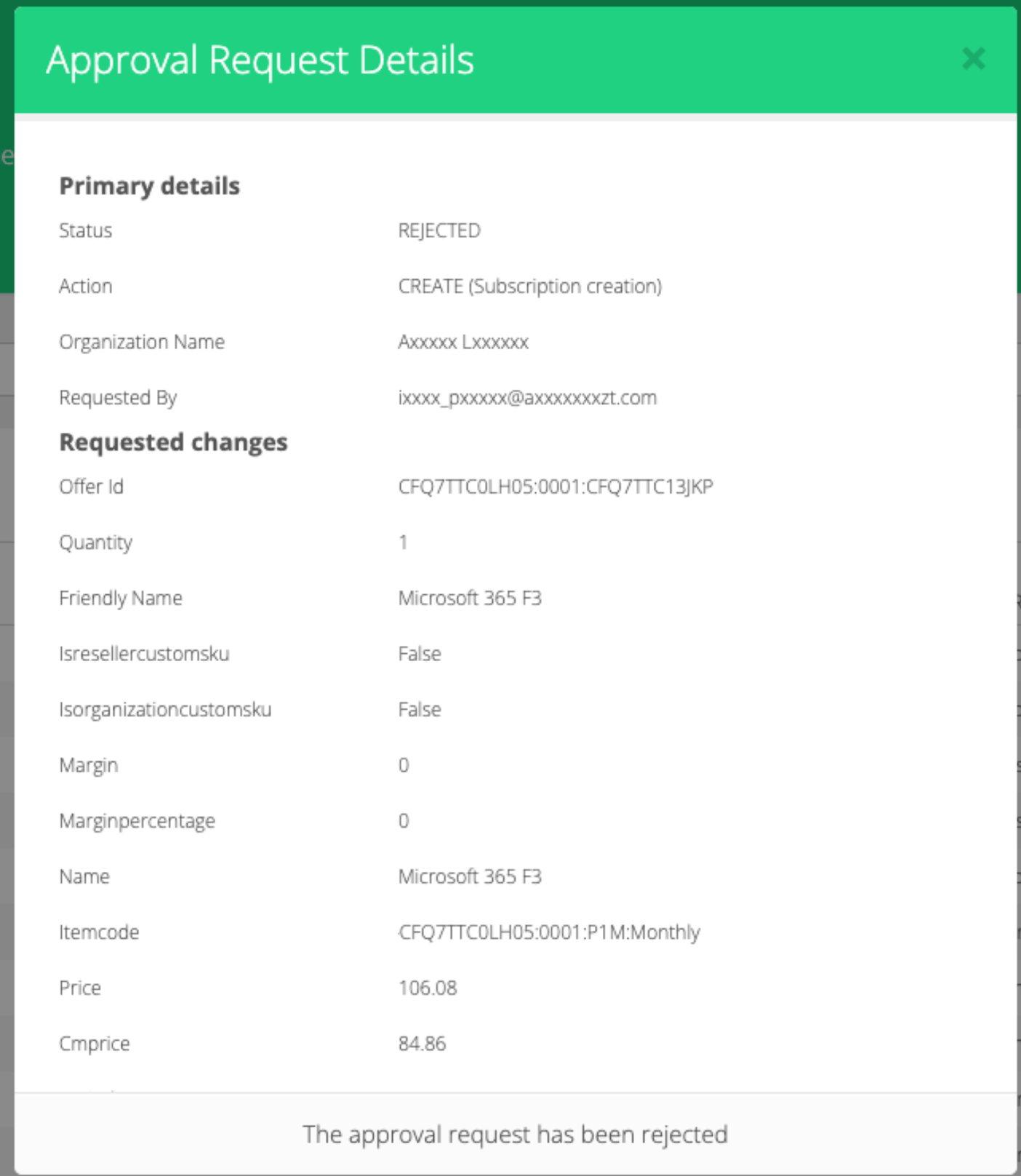
Rejected: The approval request was rejected by the Broker.
-
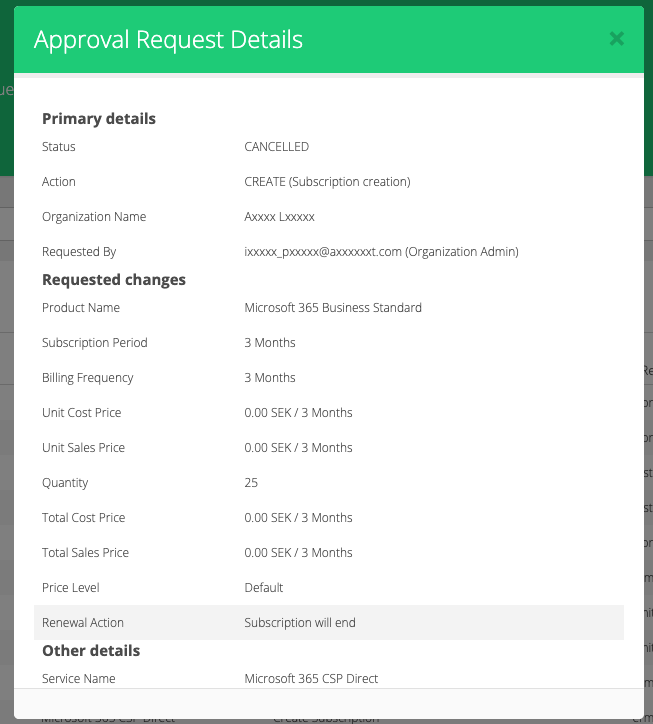
Cancelled: The approval request was cancelled by the Organization that raised it.
-
-
To view and manage the approval requests, navigate to:
Manage Organizations → Approvals → Manage Requests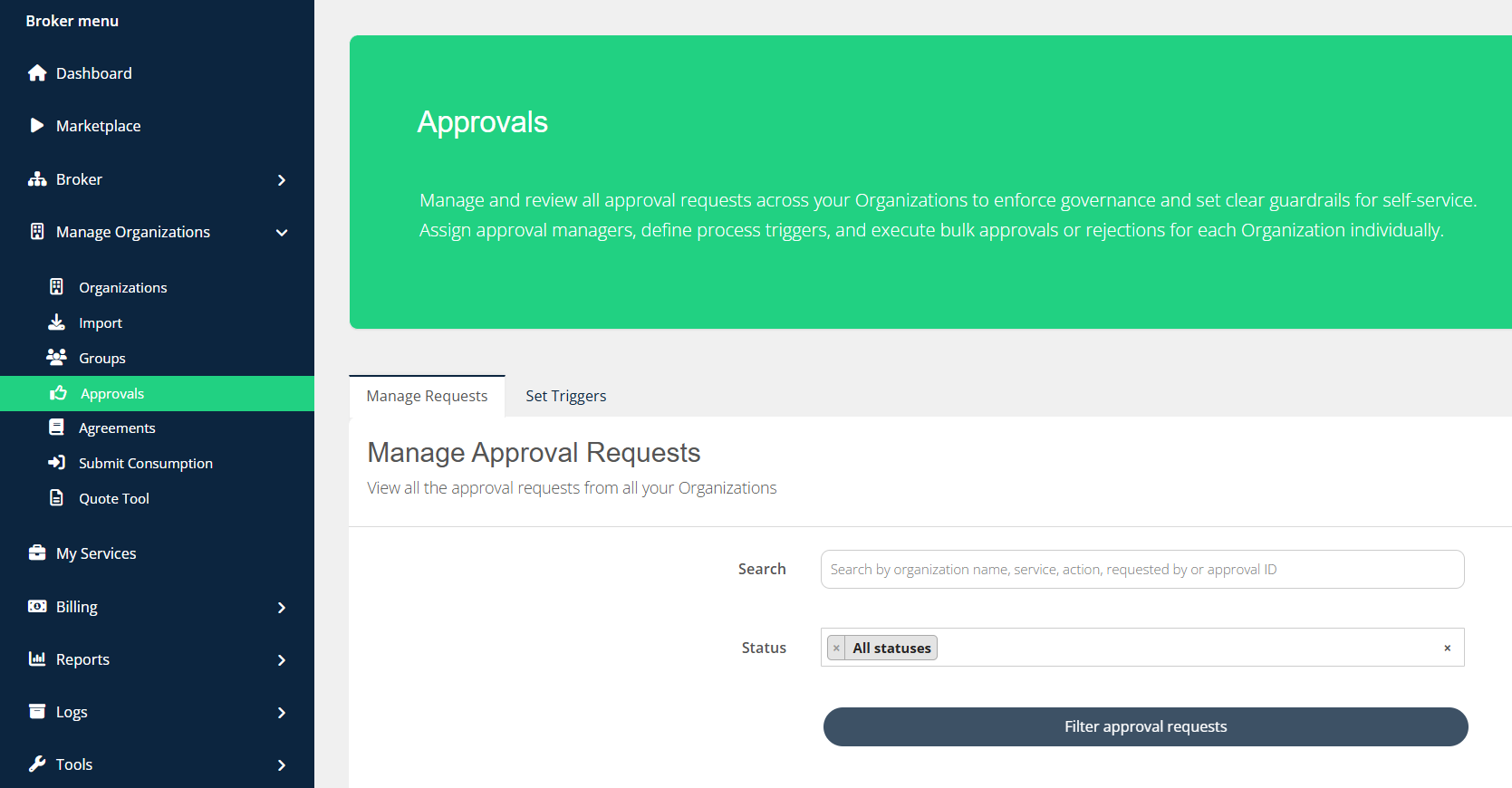
-
When no filters are applied, the “New” approval requests always appear on top, allowing you to quickly see the items that need your decision.
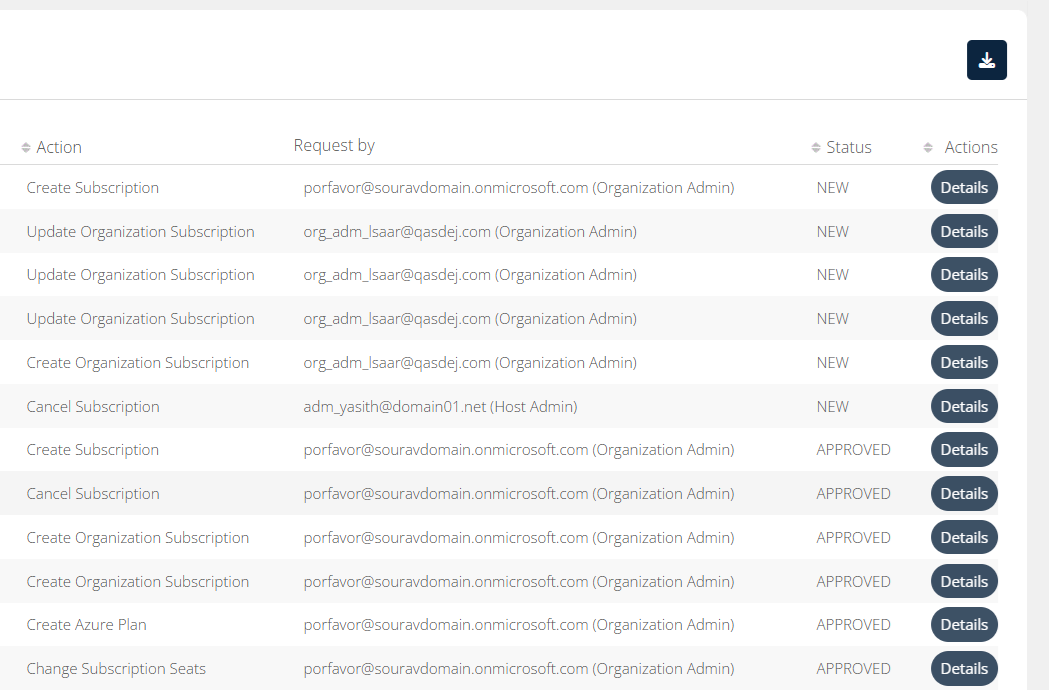
-
Click on Details to review the request and take the necessary action. In addition, a comment or a decision reason can be added.
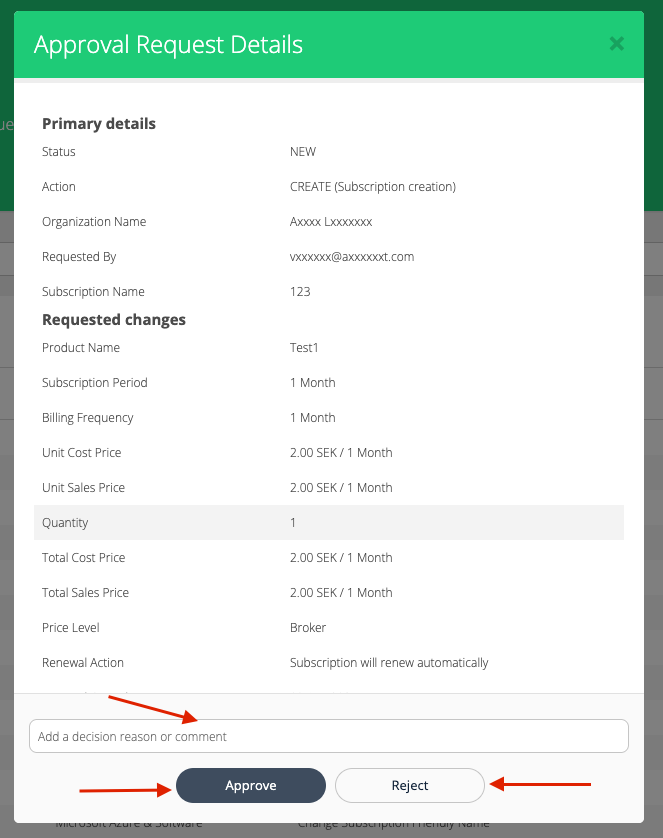
An approval request is awaiting decision