Overview
The document outlines the approval process and explains how it can be configured for the organizations you manage.
You can also set Approval Triggers for your internal employees, such as Key Account Managers and Sales Agents, if you’d like to have additional controls.
Some roles such as Global Support Admins and Key Account Managers can trigger approval requests, but they could also be configured to approve the requests. This would unlock a use case that Key Account Managers could review and approve each others' actions on the platform. While never being able to approve their own requests.
Set Up the Bulk Approval Process
👤 Broker: Global Admin, Global Support Admin, Key Account Manager
-
Log in to Cloudmore.
-
Navigate to Manage Organizations > Approvals > Set Triggers
-
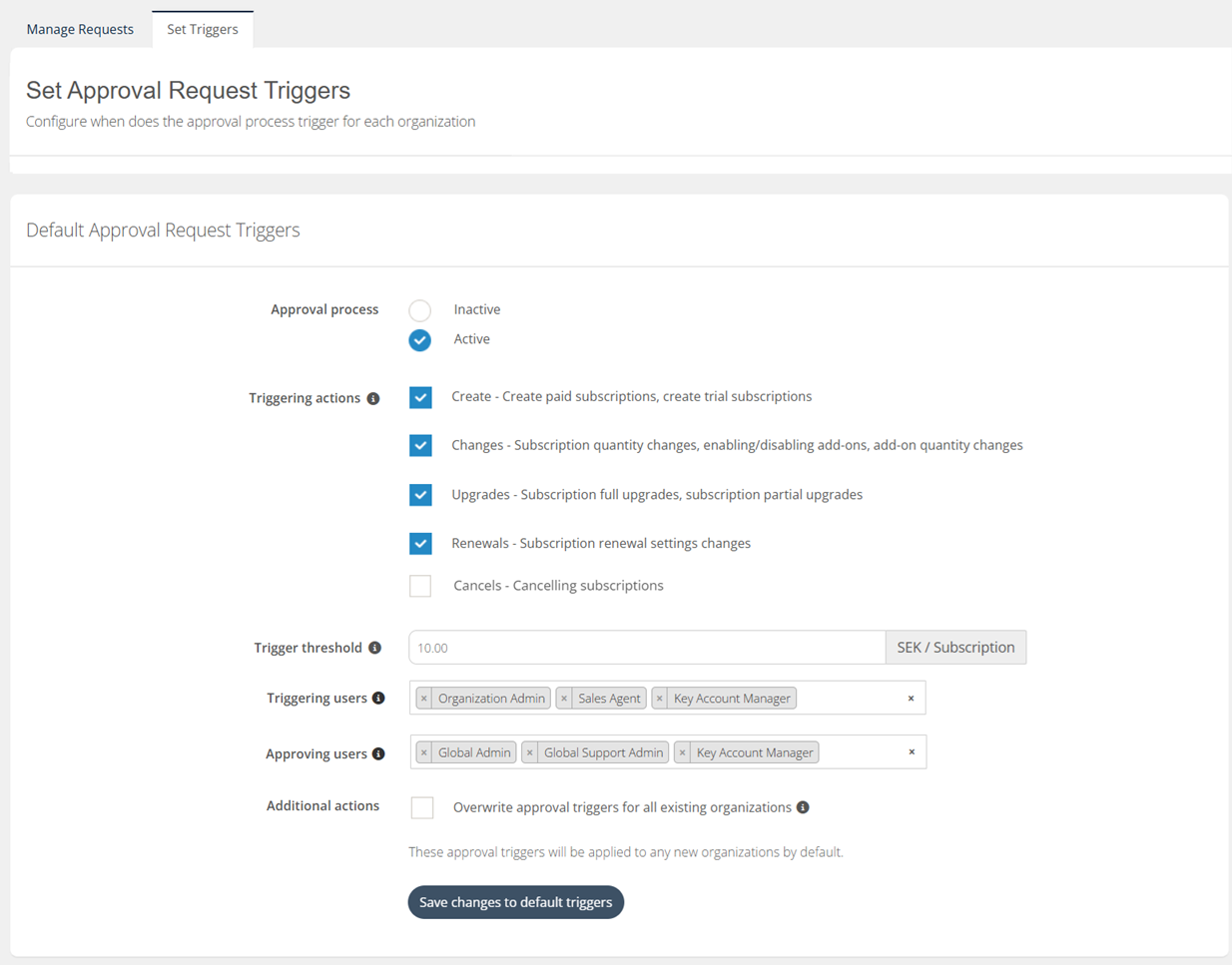
Under the Default Approval Request Triggers section, click on Active to enable the approval process.
-
Triggering actions - Select the actions for which the approval process would be triggered.
-
Trigger threshold - Can configure the price per subscription above which the approval process is triggered.
-
Triggering users - The user roles whose actions would initiate the approvals process. This could include customers and internal users.
-
Approving users - The user roles who are eligible to approve/reject approval requests.
-
If the same role is part of triggering and approving users, they cannot approve/reject the approval requests that were raised by themselves.
-
The Broker Super Admin will always have the approving user permissions, this can’t be changed.
-
-
Additional actions - Check this if you want to default approval process settings to override the current approval triggers for all Organizations.
-
Set Up the Approval Process per Organization
👤 Broker: Global Admin, Global Support Admin, Key Account Manager
-
Navigate to Manage Organizations > Approvals > Set Triggers
-
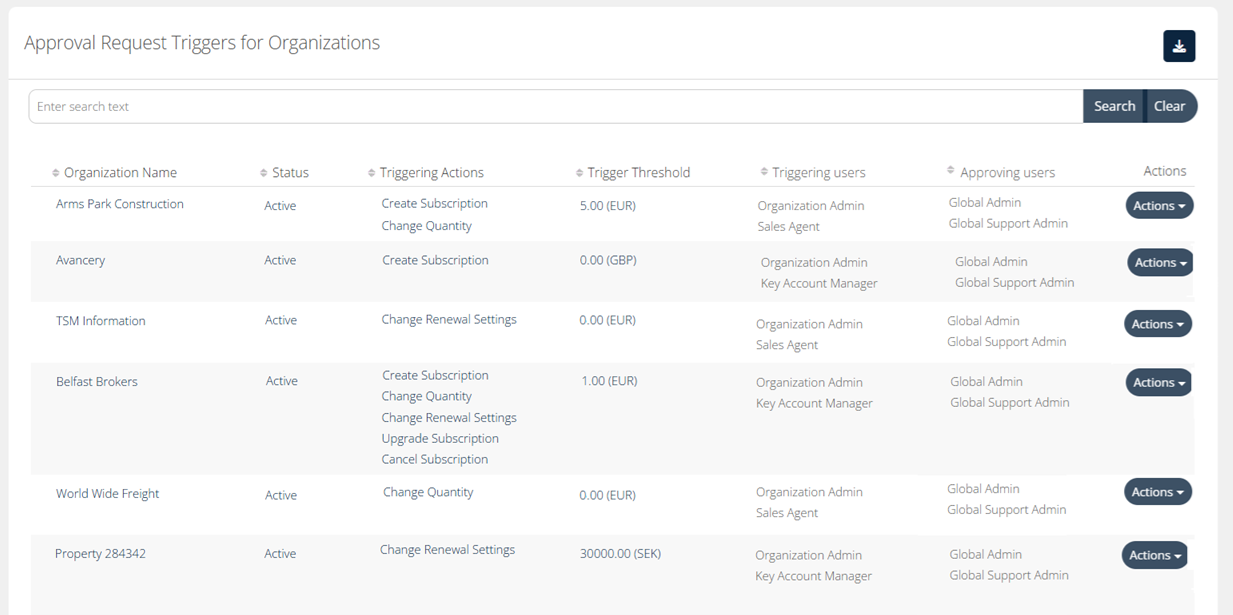
Under the Approval Process for Each Organization section, select the organization you wish to enable the approval process for and click on Actions > Edit.
-
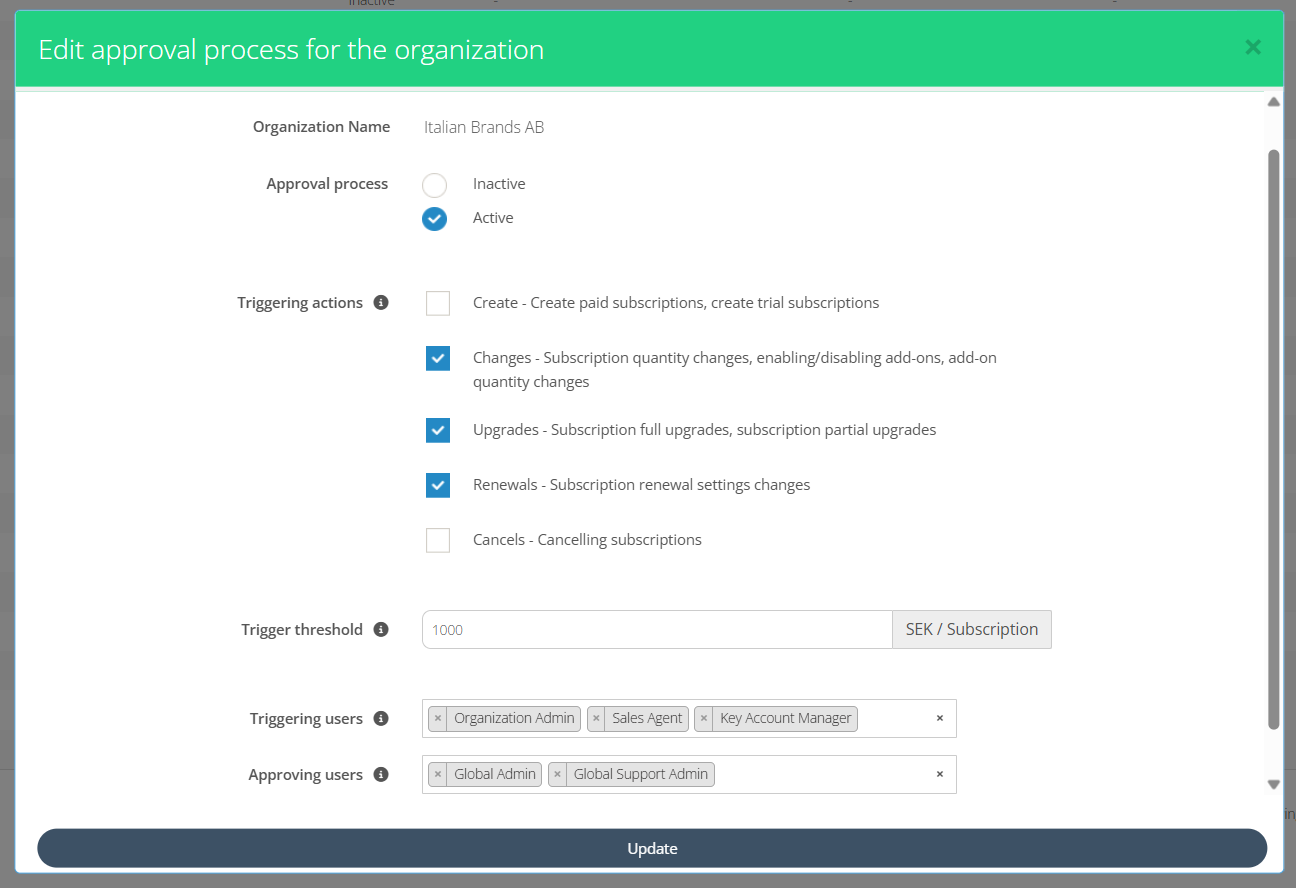
Enable the approval process by clicking on Active, and then select the events for which the approval process has to be triggered. In addition, you can configure the price per subscription above which the approval process is triggered. Then, click on Update.