
Overview
In many cases partners will use a standard set of permissions when requesting relationships for newly onboarded customers. This means that lots of identical requests will be created over time, requiring lots of operational efforts as well as introducing risks of human errors.
Templates helps reduce time spent on standard GDAP management as well as reducing the risk of human errors in setting up relationships by allowing brokers to predefine settings for relationships as well as re-using them upon creating requests.
Find and manage templates
To manage GDAP templates, go the Microsoft 365 CSP service and select Admin Relationships as a broker user. You will find two tabs. Select GDAP Templates to access the tab.
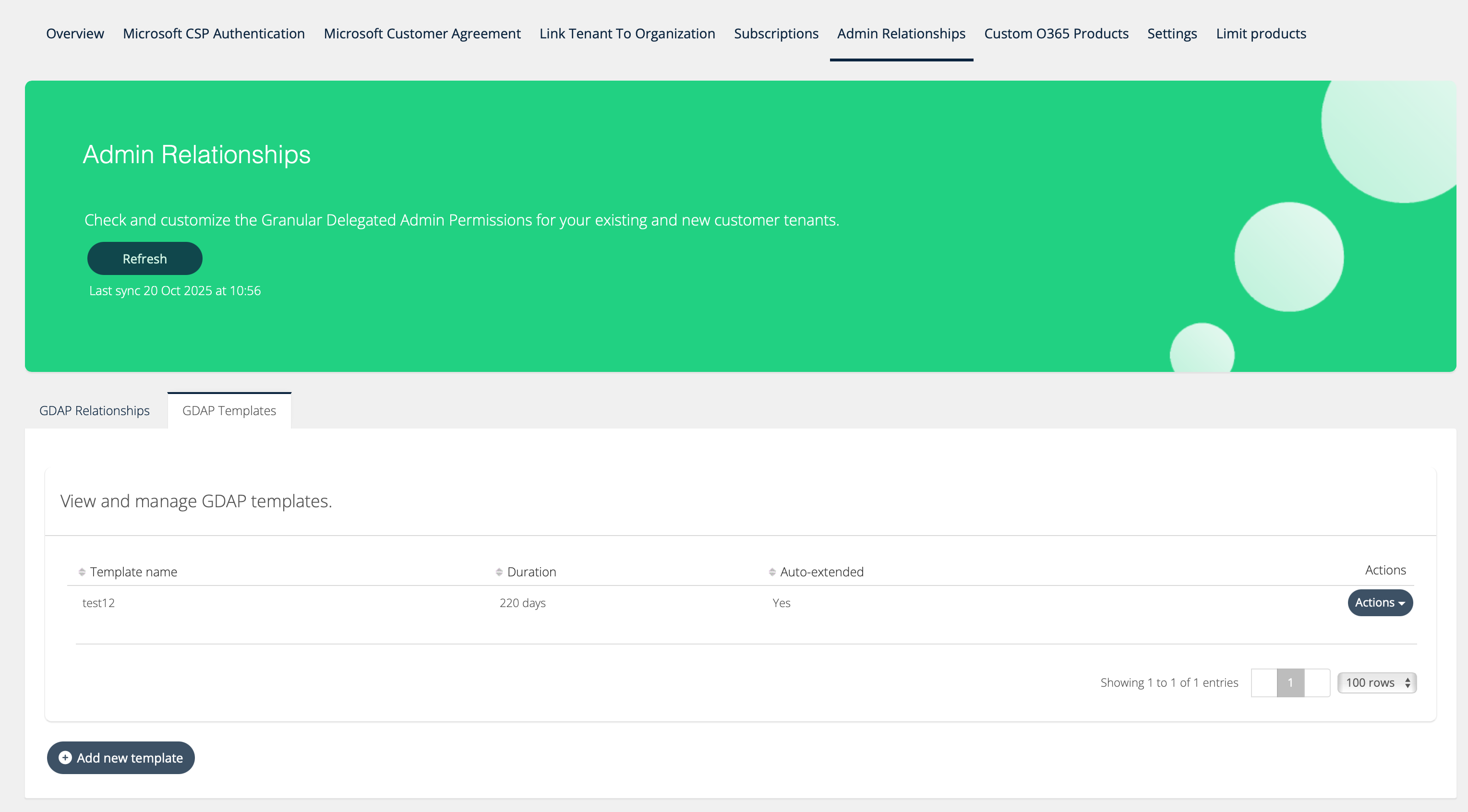
You will be able to view existing templates and add new ones. Under actions you will be able to modify existing templates as well as delete them.
Create a new template
To create a new template, simply click “Add new template”.
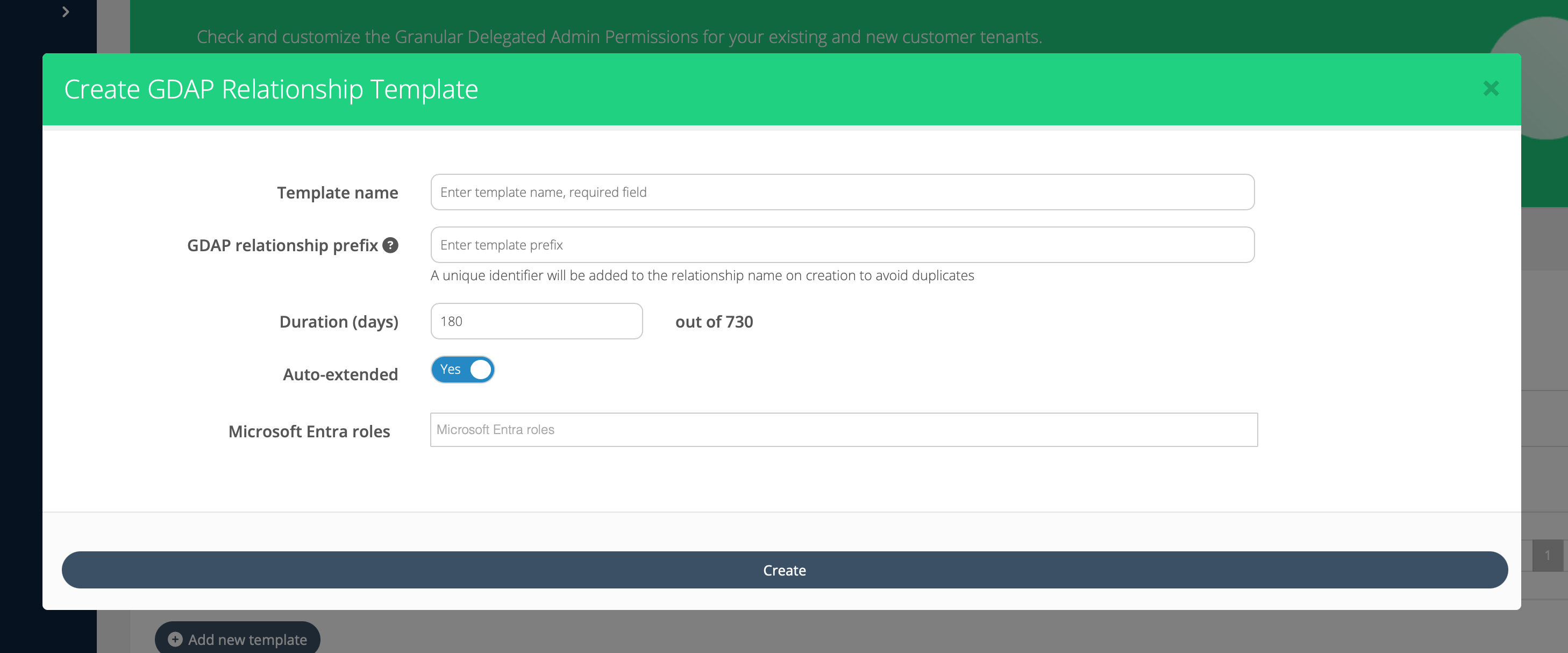
Important fields
Populate all fields to make sure the template is complete.
-
Template name - lets you pick a name for the template itself to allow you to identify it later.
-
GDAP relationship prefix - will be used to populate the relationship name in the GDAP request later on when you use the template to create a new request. By adding a prefix to your template you will have an easier time identifying any relationship created using the template later on, as well as describing the purpose of the request.
-
Duration - lets to specify the duration you want the relationship to be valid.
-
Auto-extend - decides whether the relationship is automatically extended on expiration. Keep in mind any relationship with Global admin role included can not be auto extended.
-
Microsoft Entra roles - lets you define what roles to include in requests based on the template.
Edit or delete template
To edit an existing template, simply click actions and Edit.
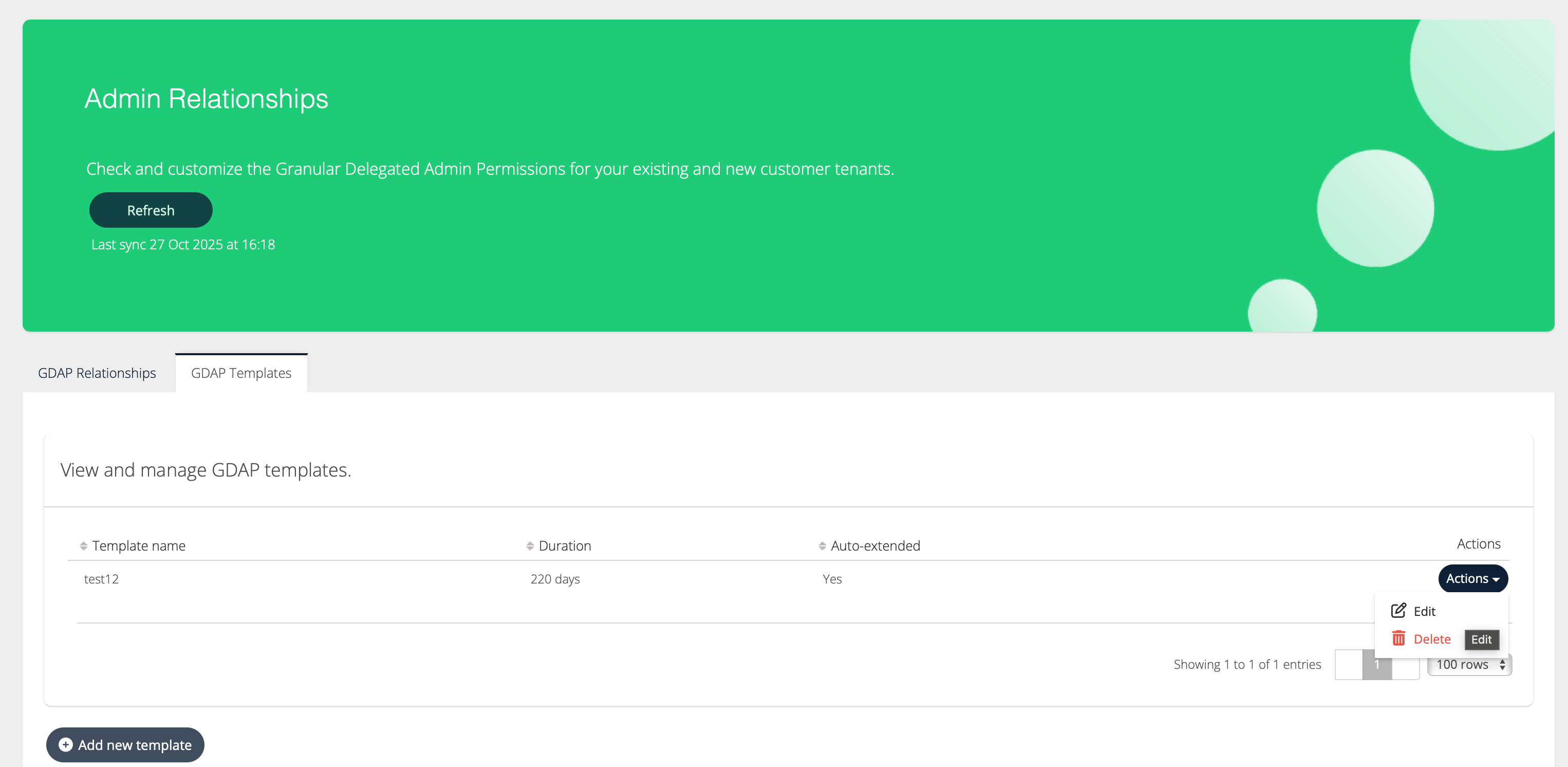
Make the desired changes and click Save.
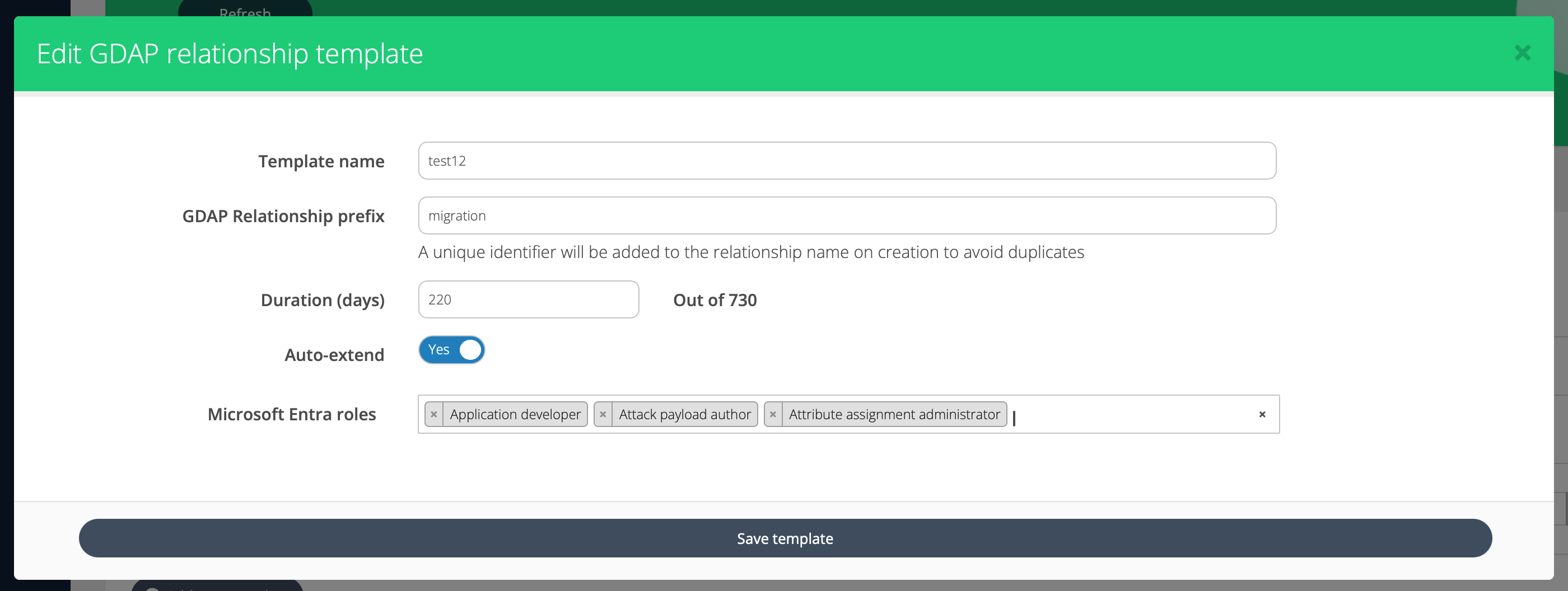
To delete a template, click actions and delete. You will be prompted to verify that you want to delete the template.
Keep in mind that editing or deleting a template does not affect any relationships created using the template.
Use template
Once you have created a template you will be able to select it upon creating new GDAP Relationship requests.
To select a template simply pick it from the dropdown in the modal.
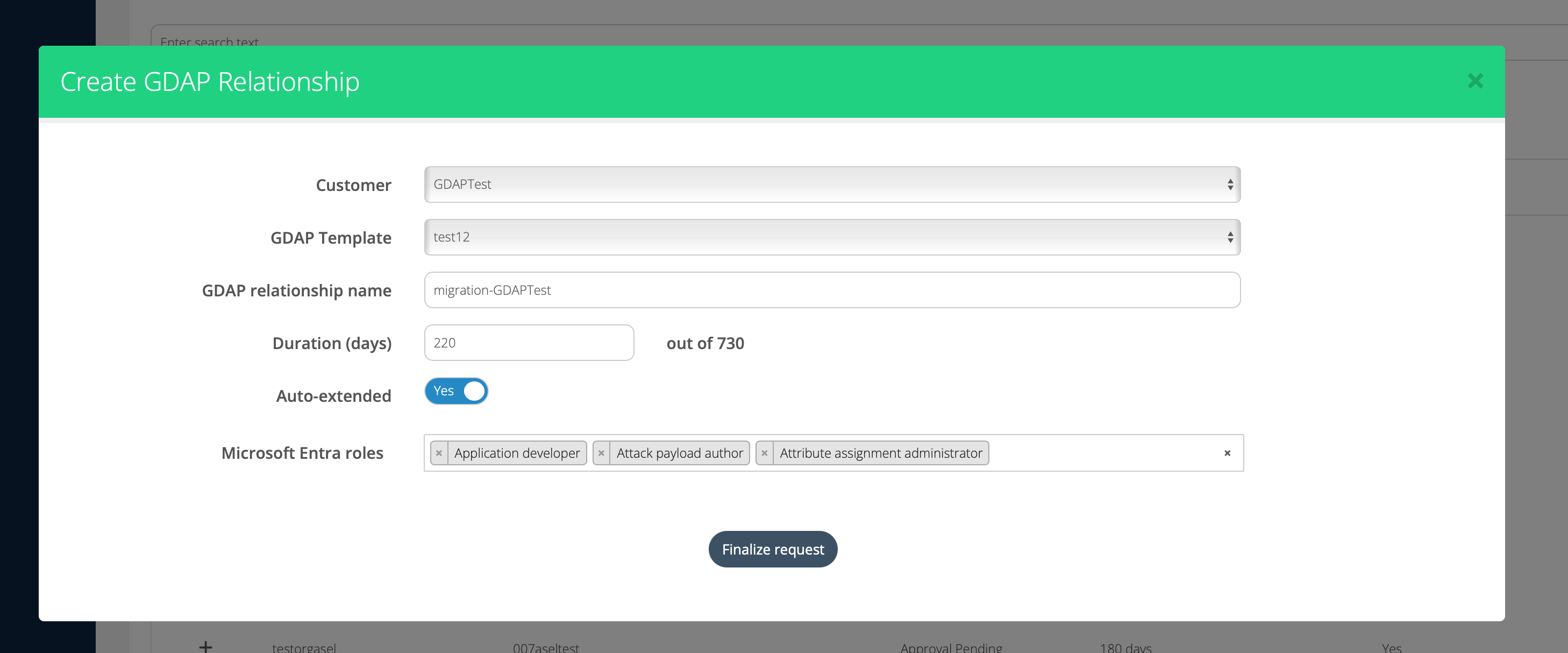
The request will be populated using values from the template. You will still be able to edit any values if you wish before sending the request.