Overview
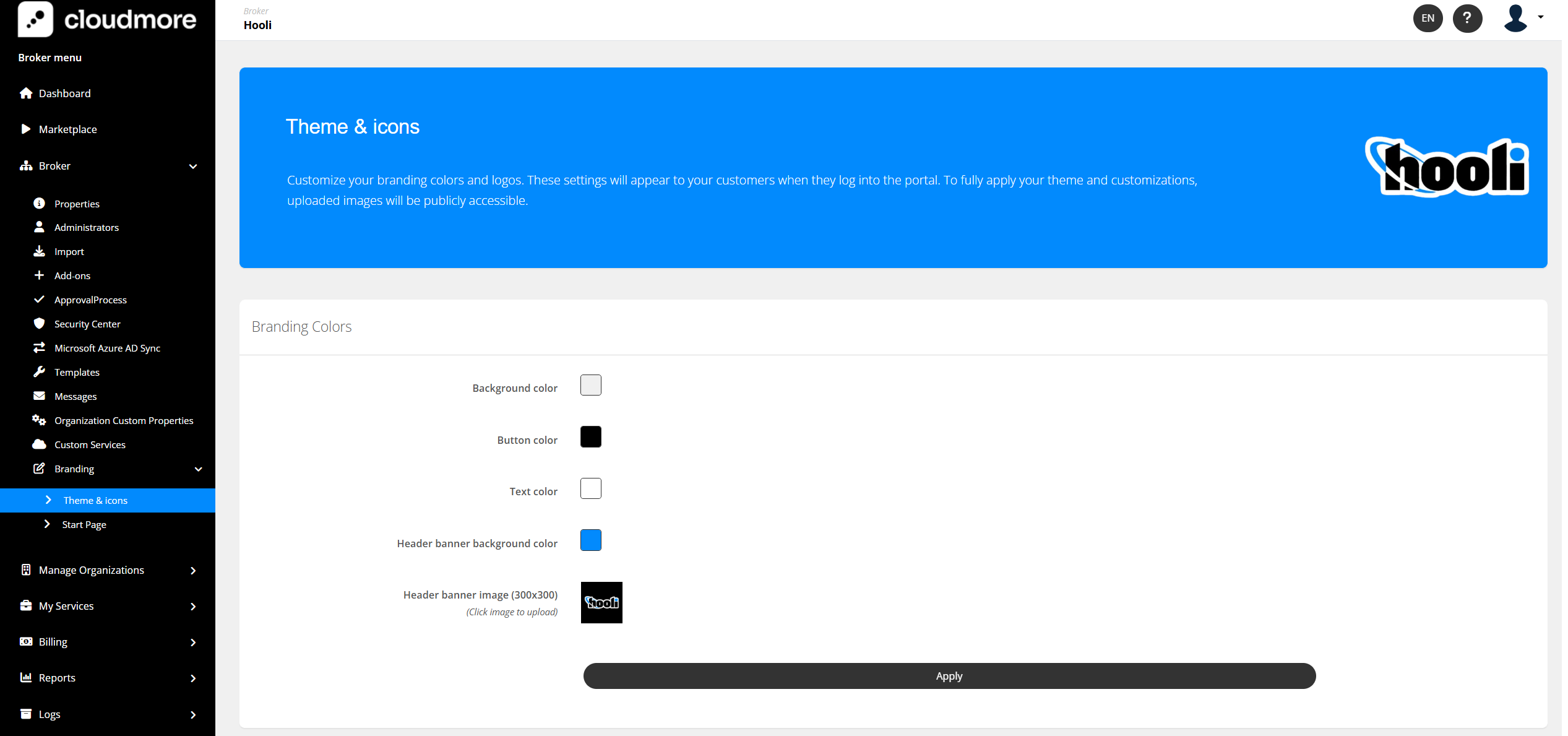
This section shows you exactly how you can set up branding in Cloudmore to make the platform appear as your own, a seamless extension to your own tools.
The branding will be applied to both your Broker level users as well as all your customers (Organization level users).
Setting up your Custom Theme
-
Log in to Cloudmore - Log in to Cloudmore.
-
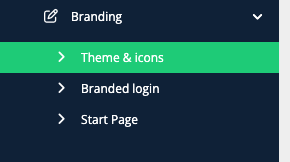
Access the Branding Section - Navigate to the Broker menu > Broker > Branding.
-
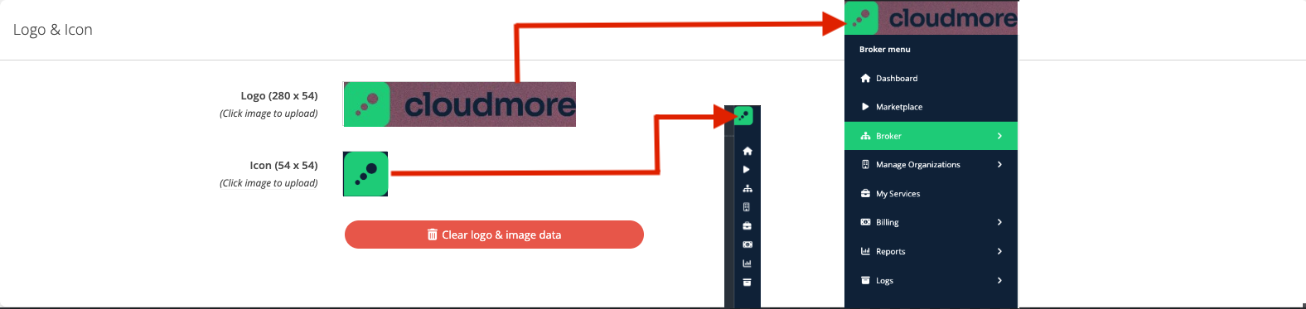
Add Your Logos/Icons - Select Theme & Icons. Click on the logo/icon area and upload your files. Ensure the logo meets the criteria mentioned in the prerequisites.
-
Logo: Appears in the top-left corner when the left panel is expanded.
-
Icon: Appears in the top-left corner when the left panel is collapsed.
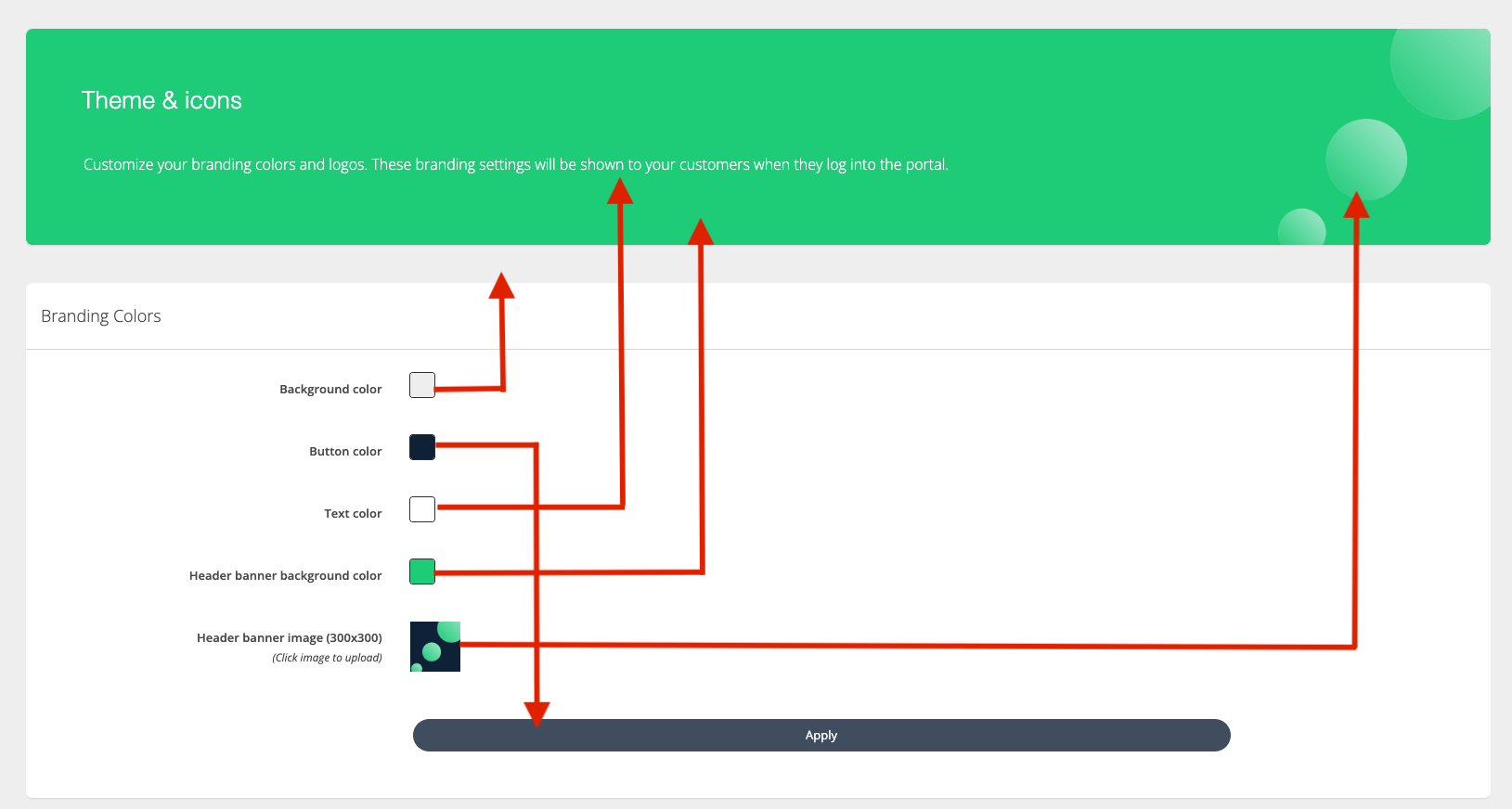
Example of a Branded Setup